Setting up a connected desk in a small alcove
Plan the task and the space needed to move before filling the remaining centimetres with equipment.
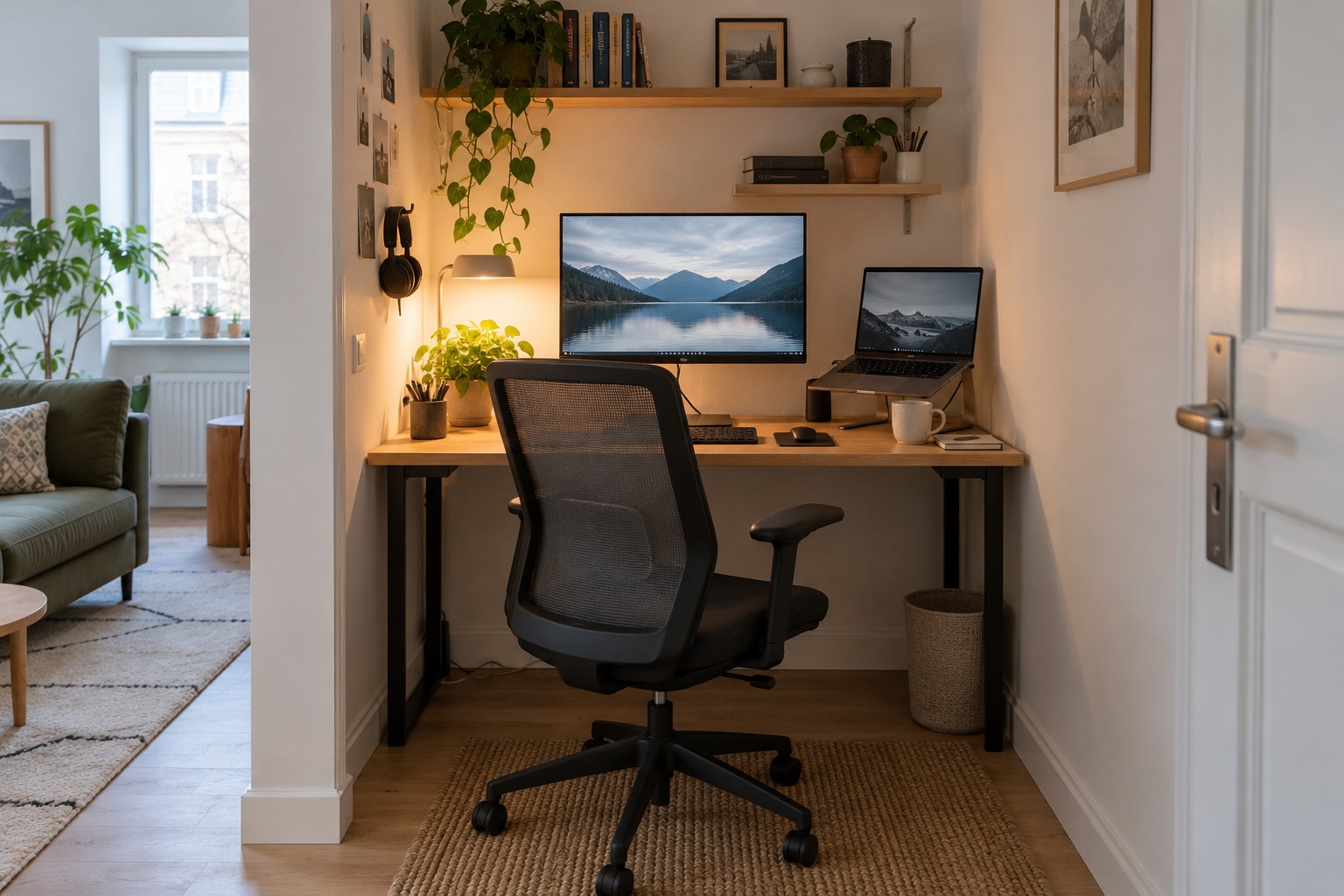
An alcove can accommodate a workstation without requiring a separate room. However, the available wall width is only one part of the decision. A desk that fits precisely can still leave too little room for the chair, your legs or a usable viewing distance. Start with the intended activity: occasional household paperwork, daily writing or several hours working with large documents.
Measure the space you can actually use
Measure width and depth at more than desktop height. Skirting boards, radiators, window handles and sockets can change the available space. Include the depth of inserted plugs and the bend in their cables. A desktop directly in front of a socket may make it unusable even when the drawing suggests that the outlet remains visible.
Temporarily mark the proposed desk footprint on the floor and bring over the intended chair. Sit down, move backwards and stand up. Check the route through the room while somebody is sitting at the desk, too. If the arrangement requires other furniture to be moved regularly, revise it before buying anything.
Make a paper model of the task
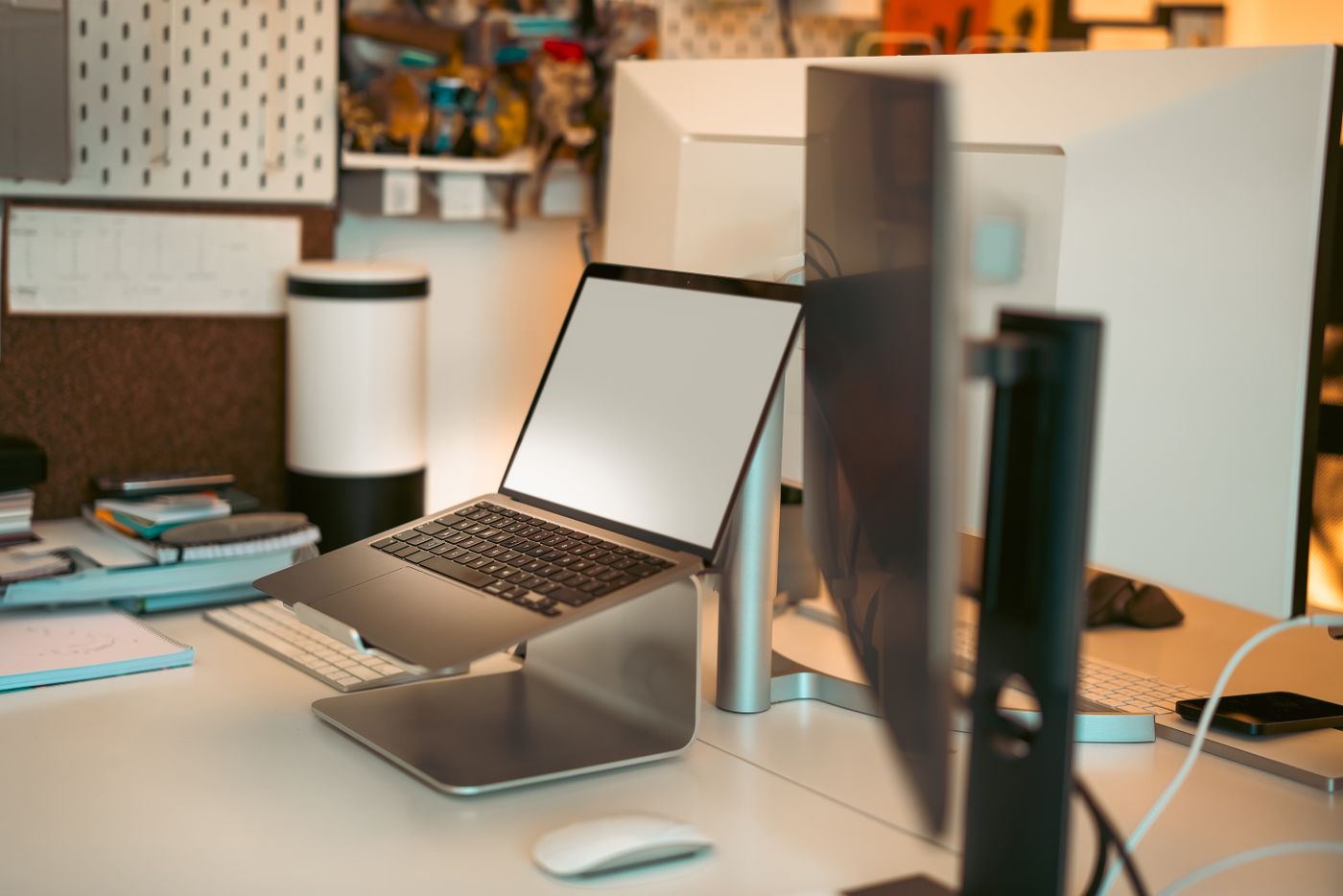
On an existing surface, lay out the footprints of the monitor base, keyboard, mouse area and laptop. Add what your work actually requires: an open folder, notebook or cup. Do not allocate every bit of space to electronics. A computer underneath the desktop must not consume the legroom you need.
A monitor arm may free desktop space, but it needs a suitable fixing and sometimes clearance behind the desk. Check the desktop material, load capacity and movement range. A wall immediately behind the workstation does not make every mount space-saving. If reading requires you to lean forward, a larger monitor may not solve the underlying lack of desk depth.
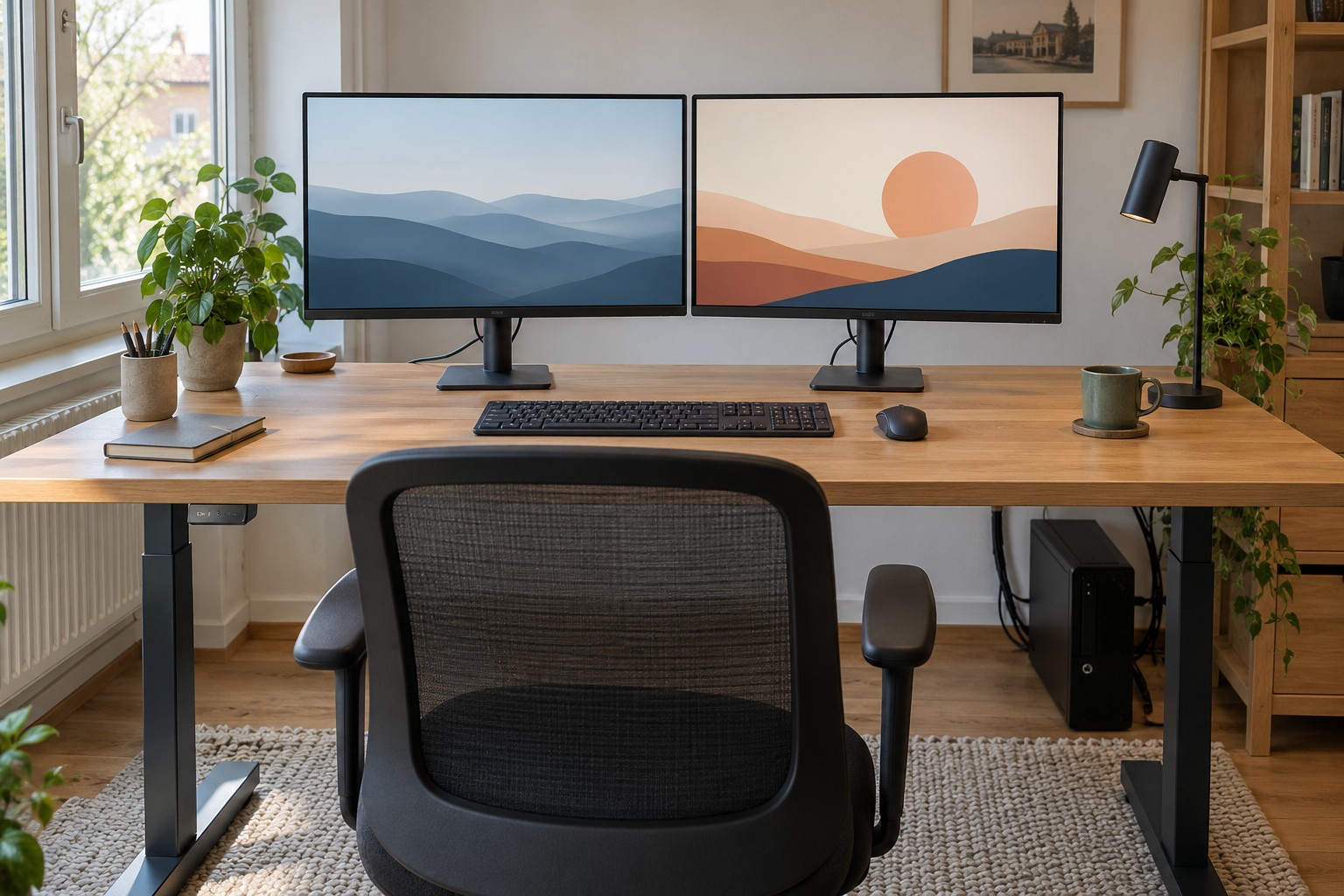
Position the principal screen and input devices so that you can face your main task directly. Try the text size and display arrangement before finalising the furniture depth. A second monitor is optional: one comfortably usable screen may suit the alcove better than two squeezed together.
Keep power and connections accessible
Plan how you will connect the laptop, lamp and accessories, and how you will remove them later. Switches and plugs should remain reachable without dismantling the desk. Use suitable, undamaged connection equipment within its stated rating, and do not connect extension strips in a chain. If permanent outlets are needed, arrange qualified installation as a separate part of the plan.
Do not wedge power supplies or computers between loose papers. Keep the ventilation areas specified by their manufacturers clear. If a door will conceal the workstation, check what happens to devices and cables when it closes. Hiding the desk should not make the equipment's operating conditions unsuitable.
Try the network connection at the future chair position using the intended device and the normal door position. A successful connection beside the router tells you little about this corner. An Ethernet cable needs a protected route that does not pass under chair wheels or across a doorway.
Check light and the complete routine
Look at the space in daylight and with the room lighting switched on. Windows or lamps may reflect in the display; a small change of angle can be more useful than turning up brightness. Allow physical room for a desk lamp, and inspect the camera framing if the alcove will be used for calls.
Rehearse a complete session: sit down, open a document, make notes, take a call, disconnect the laptop and clear the surface. If you repeatedly need to unplug something or stack unrelated objects, the usable area is probably too small. Reduce the equipment list or choose another location rather than sacrificing movement and access to accommodate the final accessory.