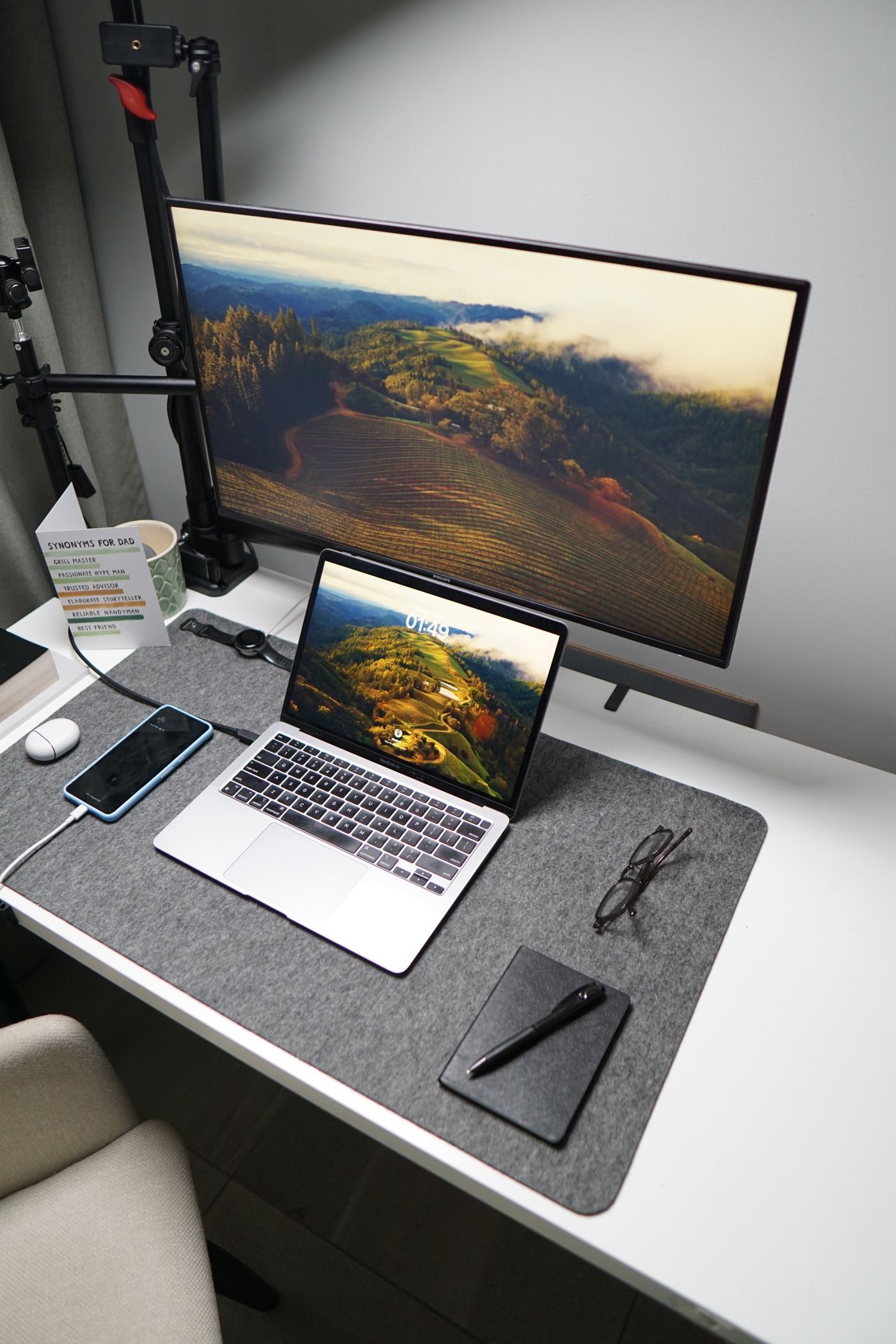
Using a laptop stand with a desk setup
Raising the screen also changes the keyboard position. Plan the whole workstation rather than height alone.
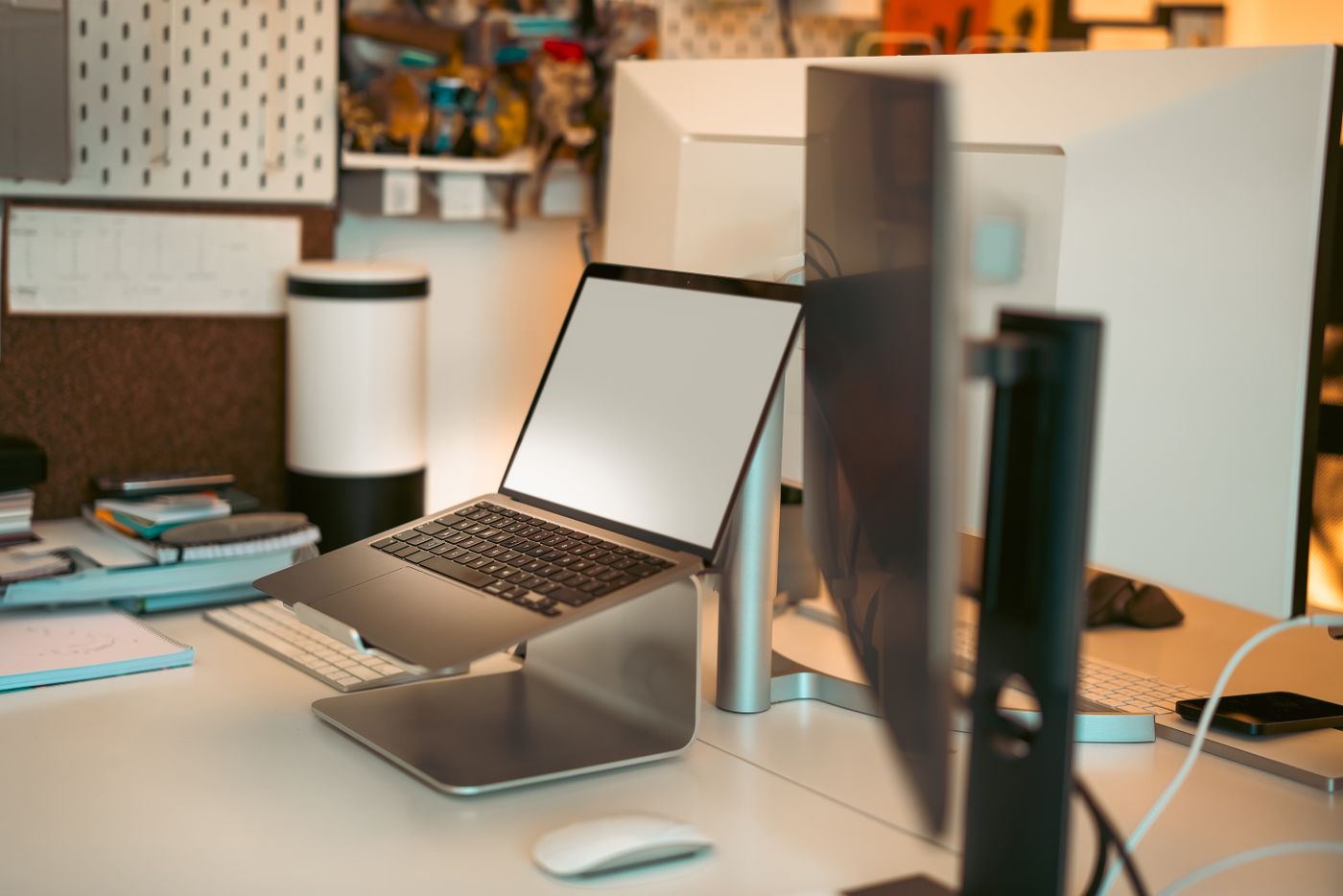
A laptop stand can raise the screen into a more useful viewing position, but it raises the built-in keyboard as well. For extended typing, a separate keyboard and pointing device often help by allowing display and input positions to be adjusted independently.
First decide how the laptop will be used. Occasional video calls, work mainly on an external monitor and hours of typing on the laptop create different requirements. A particularly tall stand is not automatically the right answer for all three.
Prioritise stability
Check permitted device size and weight, together with the support points. The laptop should rest securely without edges pressing against ports or vulnerable parts of its case. Test stability with gentle normal operating movements. A joint that drops whenever the device is touched does not suit the arrangement.
Keep the underside clear as required by the laptop's cooling design. The support must not block vents. It is too simple to claim that every raised position automatically improves cooling; the actual airflow path matters.
Consider the surface beneath the stand. A compact support on a narrow or uneven base may tip more easily. Keep drinks and trailing cables away from the immediate area. Non-slip pads do not replace a sufficiently stable supporting surface.
Position display and input separately
Arrange the seat and external keyboard first. Then position the screen so normal content is visible without leaning far forward. Use text enlargement and interface scaling as well, rather than trying to solve every readability problem through distance alone.
If another monitor is present, decide which display is used most. Put that one in the main viewing direction. The laptop can supplement it from the side, but its location should not force constant turning during the primary task.
A raised camera may help calls, yet it should not determine the entire setup. Check framing in the actual application while sitting normally. Tilting the display steeply downwards is not always compatible with useful readability.
Check connections and daily removal
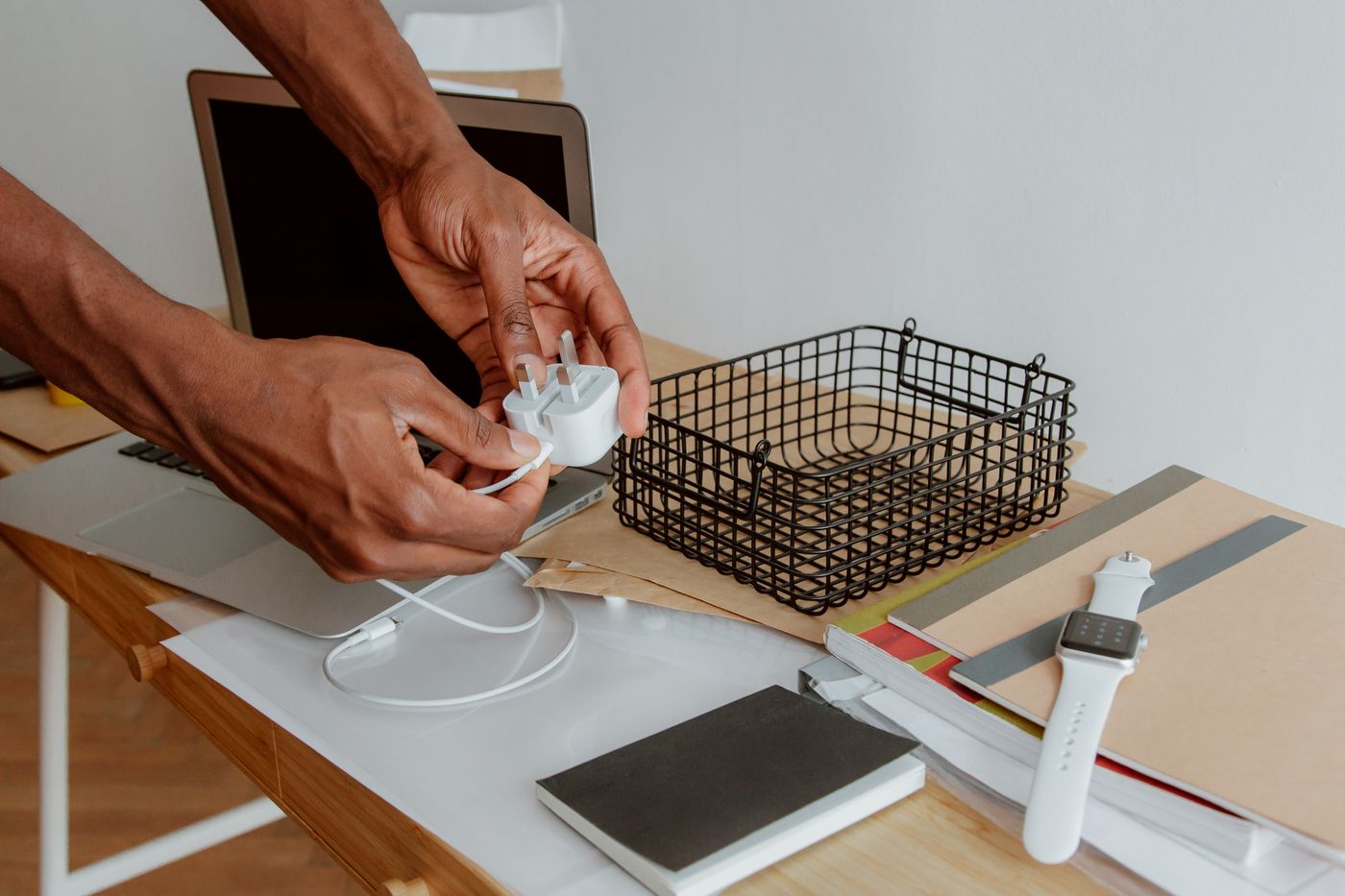
Connect power and accessories after choosing the final position. Leave enough slack for opening, closing and removing the laptop. A heavy adapter should not hang unsupported from a side port.
If the computer travels daily, rehearse the complete routine: disconnect safely, remove it, return it and reconnect. Eject external drives correctly before unplugging. A stand is integrated successfully when the workstation is easy to restore rather than requiring improvised adjustments after every trip.