Using an external drive for backups
A backup needs selected data, a repeatable routine and a tested route from the stored copy back to a usable file.
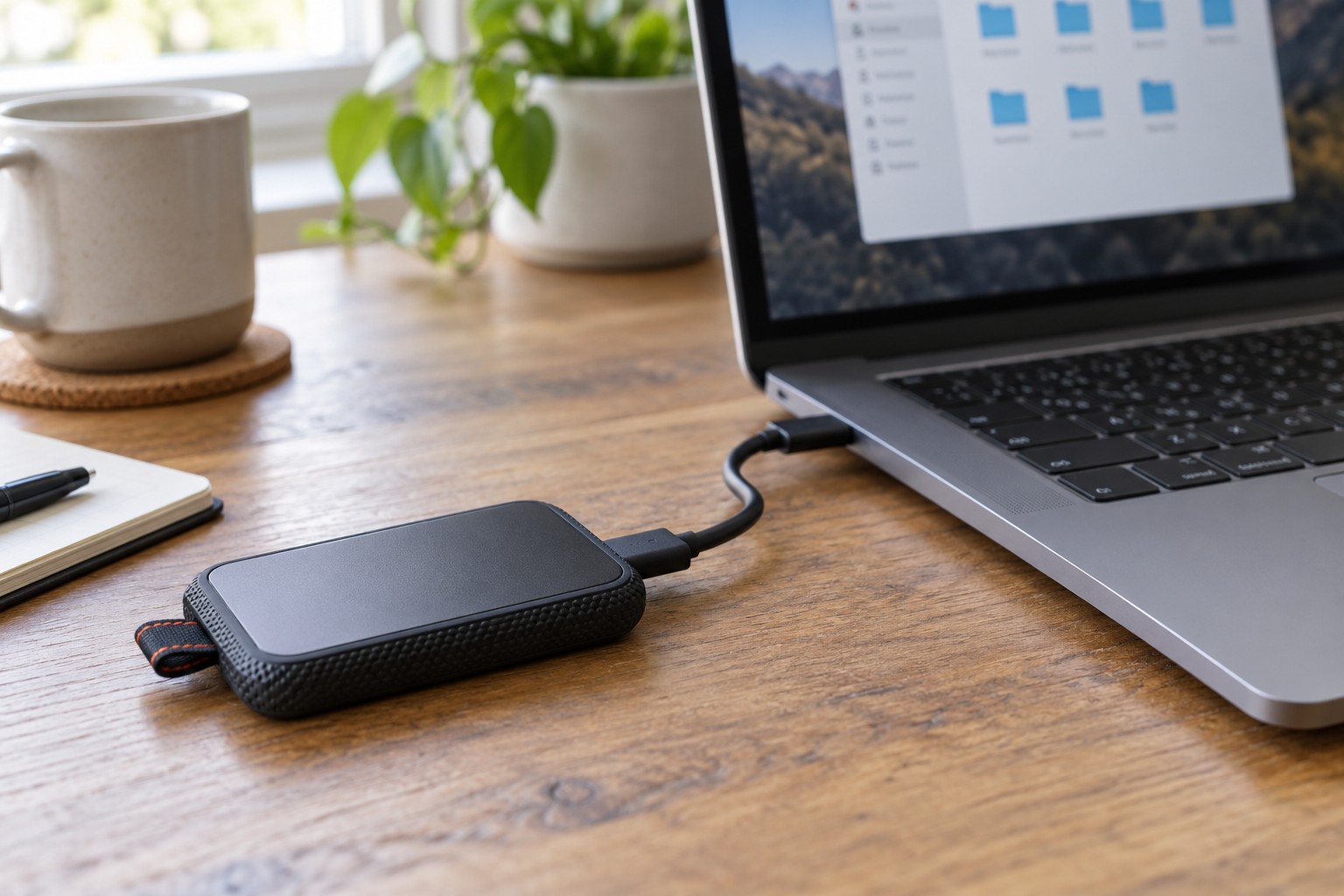
An external drive does not become a backup merely by sitting beside a computer. What matters is which files reach it, how often they are updated and whether you can actually recover them. Begin with a short inventory of the data that matters to you.
Important material may live outside the usual folders: on the desktop, in a project directory or inside an application's own database. Write down what would be missing if the computer failed. Then establish which of those items the chosen backup method actually includes.
Distinguish copying, synchronisation and backup
A one-time copy preserves that moment but contains no later changes. Synchronisation keeps locations similar and may also propagate accidental changes or deletions. A versioned backup is intended to make earlier states available. The recovery options depend on the method and its retention behaviour.
An operating-system recovery drive is not automatically a backup of personal files either. Treat those as separate jobs. Restoring a bootable computer without your photographs or work documents achieves something different from protecting the data collection itself.
Windows offers File History for selected personal content, while macOS offers Time Machine. Read the current instructions for your system and inspect included and excluded locations. Enabling a feature does not establish that every folder you might use has been included.
Prepare the drive without losing existing material
Choose capacity with room for growth and multiple versions, not just today's files. A nearly full drive may discard older states sooner or prevent new backups. Check the software's actual retention behaviour rather than assuming unlimited history.
Setup may require a particular file system or formatting. Formatting removes existing content. Check the drive name and files, and preserve anything needed elsewhere before approving that operation. Take particular care when several external drives are connected at once.
If the backup is encrypted, keep the required password or recovery key separately and accessibly. Encryption does not preserve availability if the only key is on the failed computer. Consider whether another authorised person could locate the intended access information in an emergency.
A dedicated backup drive also reduces confusion. If the same device contains the only copy of an old photo archive, that archive is not backed up merely because the device carries other backups. Each important item needs a separate recoverable copy rather than a reassuring drive label.
Create a routine that actually runs
A desktop computer may suit a regular schedule. A laptop rarely used at its desk needs a deliberate connection routine instead. Choose a time when the computer can remain connected and awake long enough. A daily scheduled job is of little use when the destination drive appears only once a month.
After the first backup, inspect the completion status and date. Seeing the drive in a file manager does not establish that the job succeeded. If errors appear, check available space, the connection and selected folders. Repeated failures should not become an ignored background condition.
Wait for the backup to finish before disconnecting. Use the operating system's eject or removal procedure and wait for permission to unplug. Removing a cable during writes can put data at risk. Store the drive away from impacts, liquids and unnecessary heat.
Practise restoring something
Choose an unimportant test file and recover it to a different location without overwriting the original. Open the recovered copy and inspect its contents. For a versioned backup, try selecting an earlier state too. This converts an assumed backup into an observed recovery procedure.
For example, imagine accidentally shortening a document and saving it several times. A current-only copy may contain the shortened version as well. An older backup helps only if it exists and you know how to select and restore it separately. That is why a small rehearsal is worthwhile before a real loss.
One drive beside the computer remains vulnerable to shared damage or theft. Consider another separate copy of important material in a different secure location. Disconnecting a completed backup when appropriate to your method can reduce some exposure, but it does not replace additional copies or routine checking.
Revisit the arrangement after major changes. A replacement computer, new project folder or different backup application can alter coverage. A short record of the destination, last successful run and tested recovery is more useful than assuming everything must already be protected.