Telling USB-C cables apart by capability
A matching connector does not establish the cable's data speed, video capability or supported charging power.
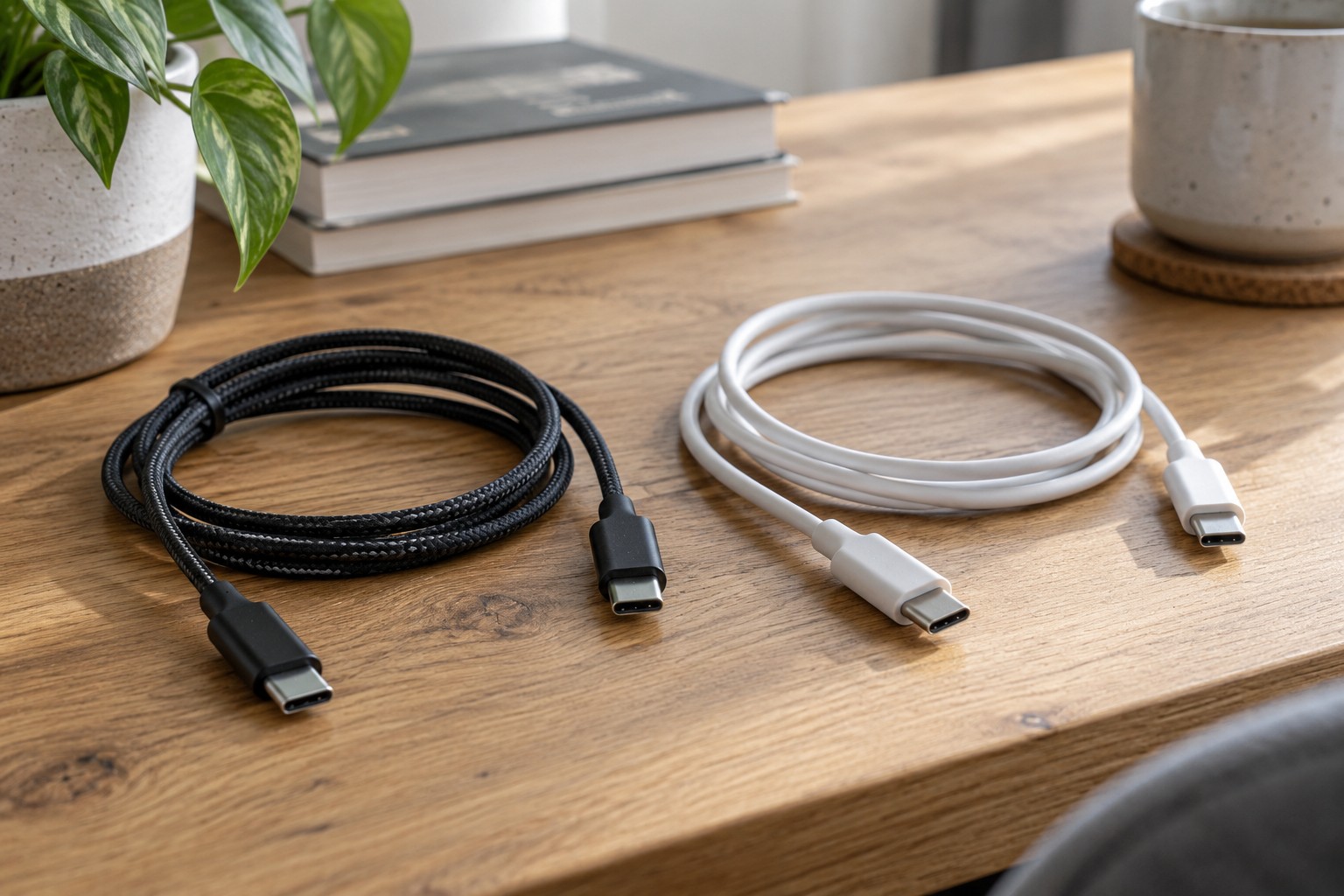
Several USB-C cables in a drawer can look almost identical while serving different purposes. One charges a phone, another connects a fast drive and a third links a laptop to a docking station. Connector shape is not a reliable description of everything a cable can do.
Start with the intended job. A monitor needs a supported video connection, large file transfers need suitable data performance, and a laptop needs an appropriate power rating. Sometimes one cable must meet all three requirements. None of those capabilities should then be assumed.
Check power, data and video separately
A high power rating does not automatically mean fast data transfer. A high data rating does not establish the required charging capacity either. Look for separate statements in the product documentation. USB-IF markings can help, but they must relate to the exact certified cable being considered.
Video also depends on the complete connection. The computer must provide the required display function, the cable must support it and the monitor or adapter must accept it. A blank screen is not necessarily fixed by buying a cable advertised for more charging power.
Thunderbolt and USB-C are not interchangeable descriptions. Thunderbolt uses a USB-C connector but requires particular capabilities and an appropriate connection. Check documented compatibility between the port and cable. A similar product name is not evidence that a particular operating mode is supported.
Assess an unidentified cable carefully
Look for printed markings, a model number and any retained packaging information. A readable power or speed marking may help establish its role. If the specifications cannot be traced, treat the required capability as unknown. A clearly specified cable is preferable for an important dock connection to repeatedly trying every lead in a drawer.
Successful charging establishes only that power transfers under the conditions observed. It does not prove the maximum permitted power or suitability for a monitor. Likewise, transferring a small file does not demonstrate a claimed maximum data rate. The devices at either end may limit the test.
Inspect the physical condition before further use. Damaged insulation, distorted plugs or unusual heating are reasons to disconnect the cable and stop using it. Do not bend or press a troublesome connector into a position where it barely works.
Isolate one part of a failing connection
If a drive transfers files unexpectedly slowly, keep the computer, port and drive unchanged while substituting a known suitable cable. If performance stays the same, the limit may lie elsewhere, including the drive or selected port. Changing several components together makes the comparison difficult to interpret.
For a monitor that loses its image, first confirm that the correct computer port is in use. Where possible, try a direct manufacturer-supported connection without extra adapters. Then investigate individual intermediate components. A chain of converters creates more possible limitations than a single suitable connection.
Charging problems also require checking the adapter and receiving device. A suitable cable cannot create missing output power or an unsupported charging profile. Some multiport chargers redistribute power when another device is connected. A change in charging speed does not automatically implicate the cable.
Consider a laptop that charges through a phone cable but cannot show a picture through the same lead. That result is consistent with different capabilities being involved. Preserve the working original monitor cable and compare its documented functions. Do not change display settings indefinitely to compensate for an unsuitable physical connection.
Choose length and labels deliberately
Select enough length for the actual route and modest movement. Excess length adds loops; insufficient length pulls on the socket. Longer or active cables can have their own conditions. Check direction markings and supported functions for the particular version rather than generalising from a shorter cable in the same range.
Label verified cables by their intended role, such as laptop dock or phone charging. Add technical details only when reliable documentation supports them. A homemade label based on one successful trial can otherwise create false confidence later.
Keep a dock's working cable with that dock where possible. This avoids unintentionally changing a proven arrangement during tidying. Coil cables loosely and avoid sharp bends immediately behind the connector. Organisation is not merely cosmetic: it helps you reproduce a known working connection without repeating the same investigation.