Cleaning a computer keyboard
Loose crumbs, surface marks and a spilled drink require different responses rather than one universal cleaning method.
Turn off the computer or keyboard and disconnect a wired connection before cleaning. For a wireless keyboard, follow its instructions for switching off and, where appropriate, removing replaceable batteries. Cleaning during use can cause unintended input and is particularly unsuitable when moisture is involved.
Read the care instructions for the exact model. Mechanical keyboards with removable caps, shallow laptop keyboards and specially coated surfaces are not constructed identically. A method allowed for one product may damage another.
Start with dry cleaning
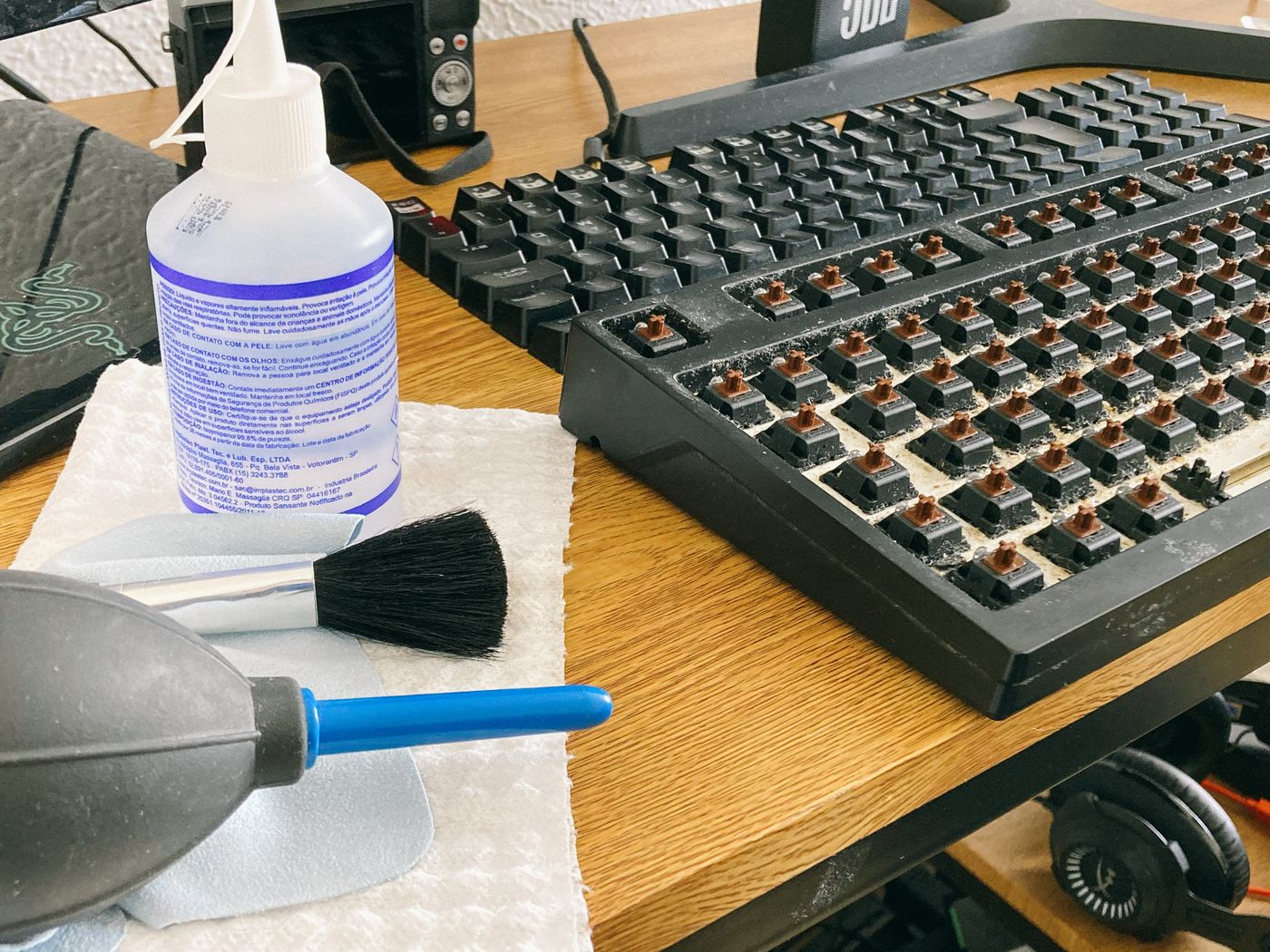
Remove visible loose dirt gently with a suitable soft brush or the manufacturer's specified method. Avoid pushing crumbs deeper between keys. If compressed air is recommended, follow the stated orientation and procedure. Arbitrarily strong air pressure is not a safe shortcut.
Wipe the surface with a soft lint-free cloth. Where a slightly damp cloth is permitted, it must not drip. Apply liquid to the cloth rather than directly to the keyboard. Keep moisture away from openings and connectors, and allow everything to dry fully before reconnecting.
Cleaning or disinfecting products must suit the material. One manufacturer's approval does not automatically apply to another brand or coating. Abrasives, harsh solvents and forceful rubbing can damage lettering or finishes. Check the instructions before assuming a familiar household cleaner is appropriate.
Do not remove caps speculatively
Remove keycaps only when the model is designed for it and the instructions explain how. Shallow scissor mechanisms can break if pulled incorrectly. Where removal is allowed, photograph the layout beforehand and handle small attachments carefully.
A sticking key after a spilled drink is not simply ordinary dust. Safely disconnect the affected device from power and follow the manufacturer's liquid-damage guidance. Do not try to solve the problem by repeatedly switching it on, applying hot air or rinsing it generously.
After routine cleaning, test individual keys in an unimportant text field. If input is missing or repeats unexpectedly, check the connection and have possible damage assessed. Regular gentle removal of dry dirt is easier to manage than aggressive cleaning after residues have accumulated for a long time.