Choosing a USB-C dock for a laptop
Connector shape, display support and charging power must all fit the computer and the monitors you intend to use.
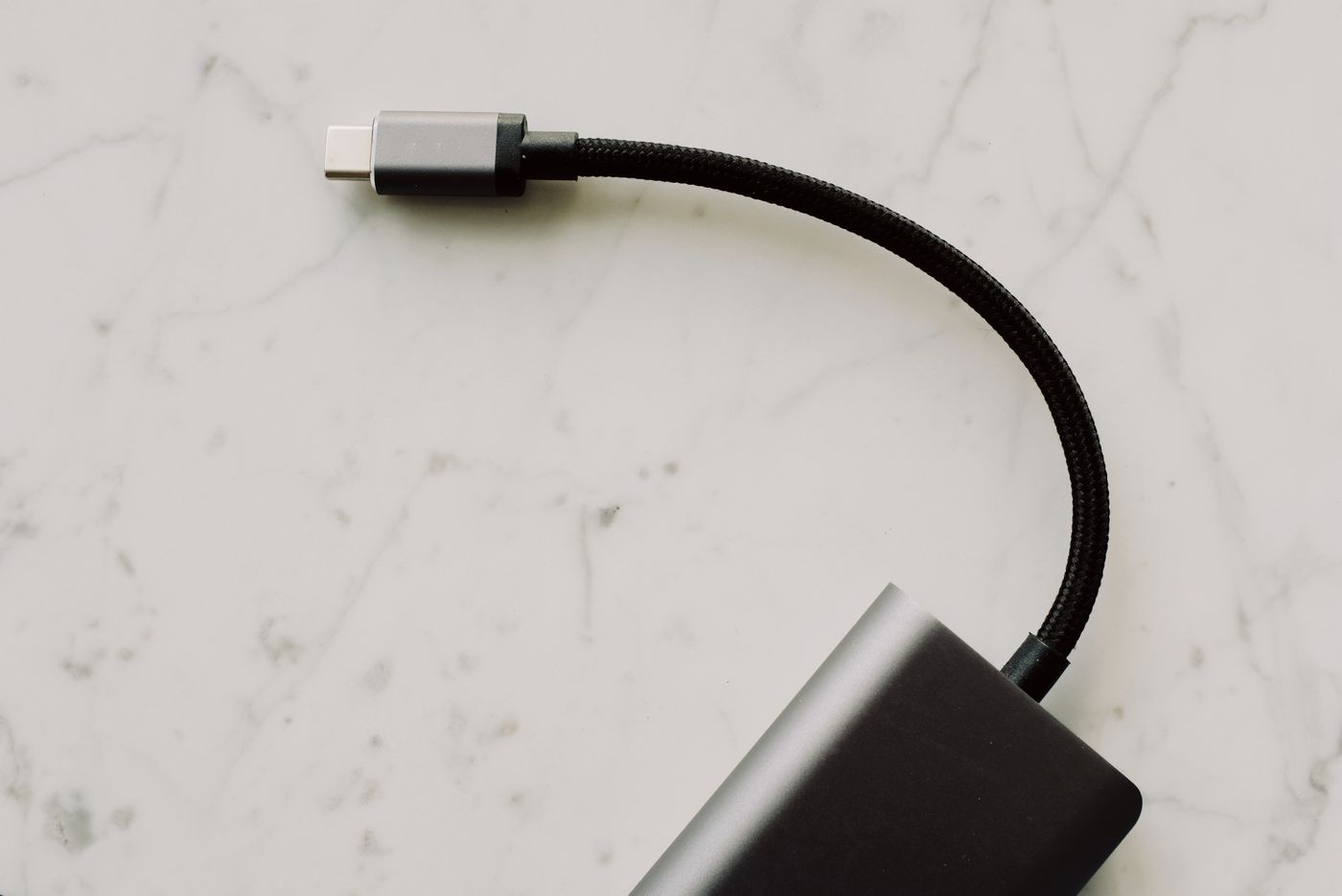
A docking station can combine charging, displays and accessories into one connection. Identical USB-C sockets on two laptops do not mean that both computers support identical functions. Start with the exact laptop model and its port documentation, rather than counting sockets on a dock.
Write down what must work at the same time: perhaps one external monitor, a webcam, wired networking and laptop charging. Include the intended display resolution and refresh rate. This specific requirement is more useful than asking for a universal dock without defining the workload.
Check the computer's connection first
A USB-C port may transfer data without supporting an external display. Many USB-C docks require DisplayPort Alternate Mode. Thunderbolt docks have their own requirements and may offer restricted fallback operation with other connections. Read both products' compatibility information; a plug fitting into a socket proves very little.
If the laptop has several similar-looking ports, check them separately. A feature may be available through only one of them. Symbols can help identify a connection, but the specification remains the reference. Record the intended port so that an apparently harmless move to another socket does not later change the setup.
Some universal docks use an additional graphics system requiring software. This differs from a native DisplayPort connection and may have limitations involving protected content, operating systems or particular graphics workloads. Investigate those requirements before buying, especially for a managed work computer on which you cannot install drivers.
Treat displays as a combination
Two display sockets do not guarantee two independent monitors at every resolution. The supported combination depends on the computer, dock technology, selected outputs and operating system. Some outputs share internal resources or cannot operate simultaneously. Look for an explicitly supported combination rather than a maximum figure in a headline specification.
For example, one monitor may work at the desired settings while connecting a second forces a lower refresh rate. That is not necessarily a defective unit. First consult the bandwidth and display-combination information. Reducing a setting can help diagnose the limit, but it does not establish support for the original configuration.
If a screen remains blank, test it directly with the laptop where possible using a known suitable cable. Then connect only that screen through the dock. Add the other monitor and accessories individually. This preserves a clear point at which the problem appears. Obtain necessary updates from the relevant manufacturers' official support channels.
Separate laptop charging from accessory power
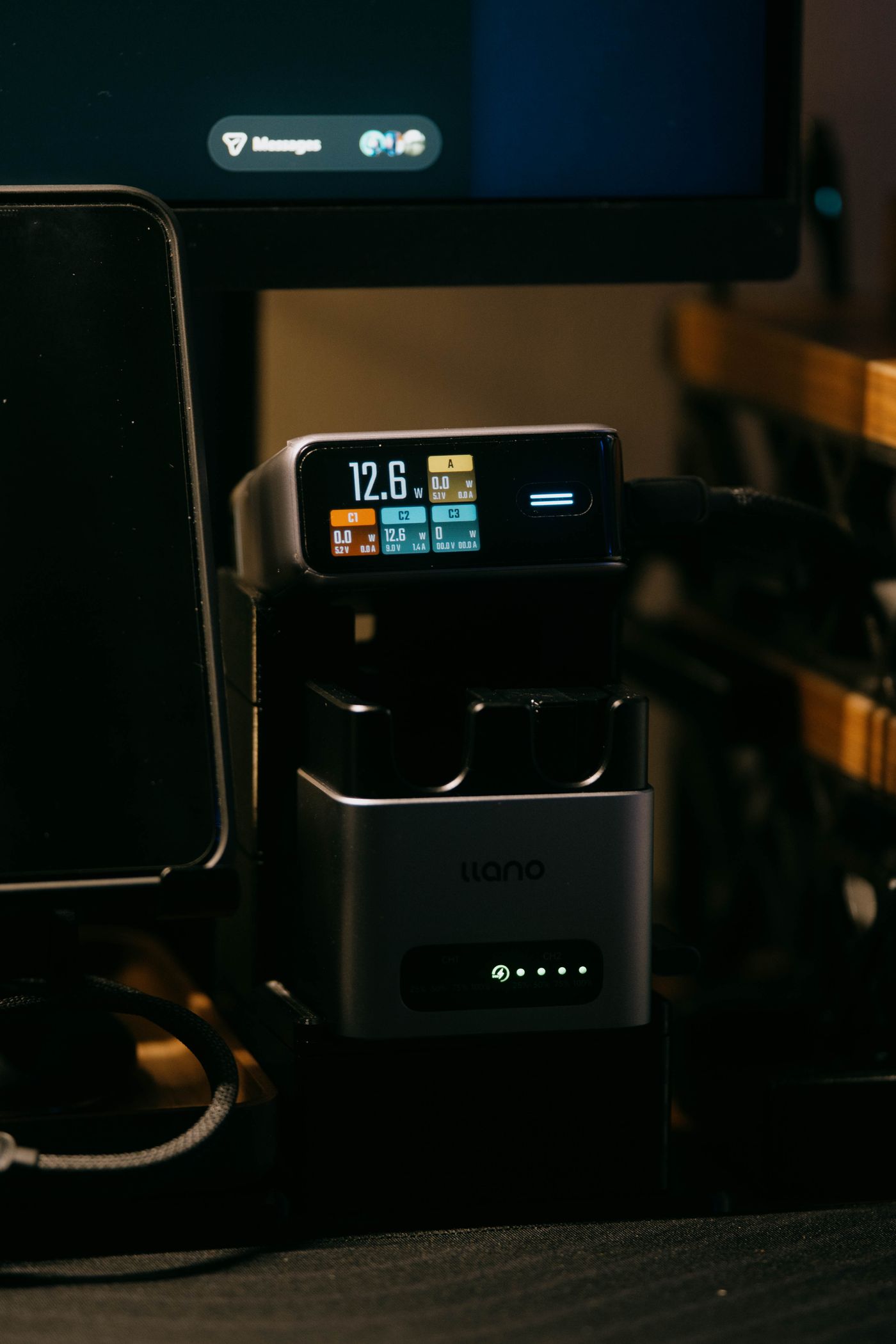
The rating on a dock's power adapter is not automatically the amount delivered to the laptop. The dock powers its own electronics and attached accessories too. Check the stated host charging output and whether the laptop accepts that charging method.
A powerful computer may appear to charge normally while idle but lose battery charge during demanding work. Compare the laptop's requirements with the available supply, then test your normal workload. If the documented configuration requires a separate laptop adapter, that is part of the supported arrangement rather than a reason to improvise a more powerful supply.
Individual accessory ports also have limits. If an external drive disconnects when other equipment is added, investigate the specified power allowance and connection sequence. Where appropriate, use the accessory's supported separate power supply. Do not attempt to combine unrelated adapters or power paths.
Consider a shared desk used by two different laptop models. A dock working fully with one does not validate the other. Check display support and charging for each computer, and label any model-specific cable or adapter clearly. A second approved charging lead may be a more predictable solution than repeatedly accepting low-power warnings.
Test everyday transitions
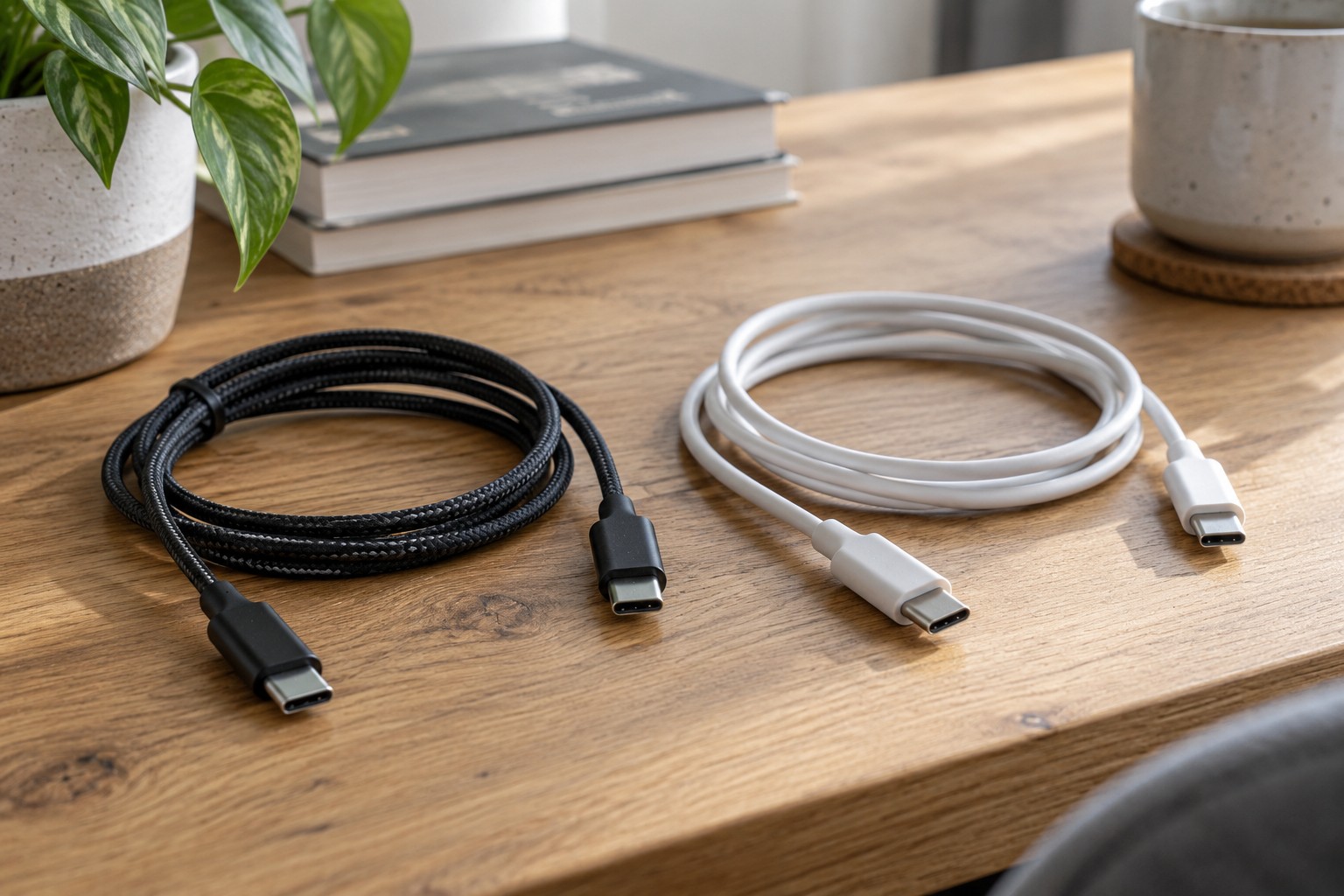
Use the specified host cable. An arbitrary USB-C charging cable can prevent a working dock connection even when it supplies power. Route it without pulling on the connector or making tight bends. Give the dock an accessible, ventilated position rather than burying it between bags and paperwork.
Finally, test more than the first startup. Check waking from sleep, reconnecting after taking the laptop elsewhere, camera and microphone selection in your actual calling application, and safe removal of external drives. Keep a short record of the working ports and settings. A suitable dock supports the complete combination you need, not merely one successful peripheral connection.