Building lighting scenes around activities
A scene should simplify a recurring situation. The important questions are which lights belong and how other rules interact.
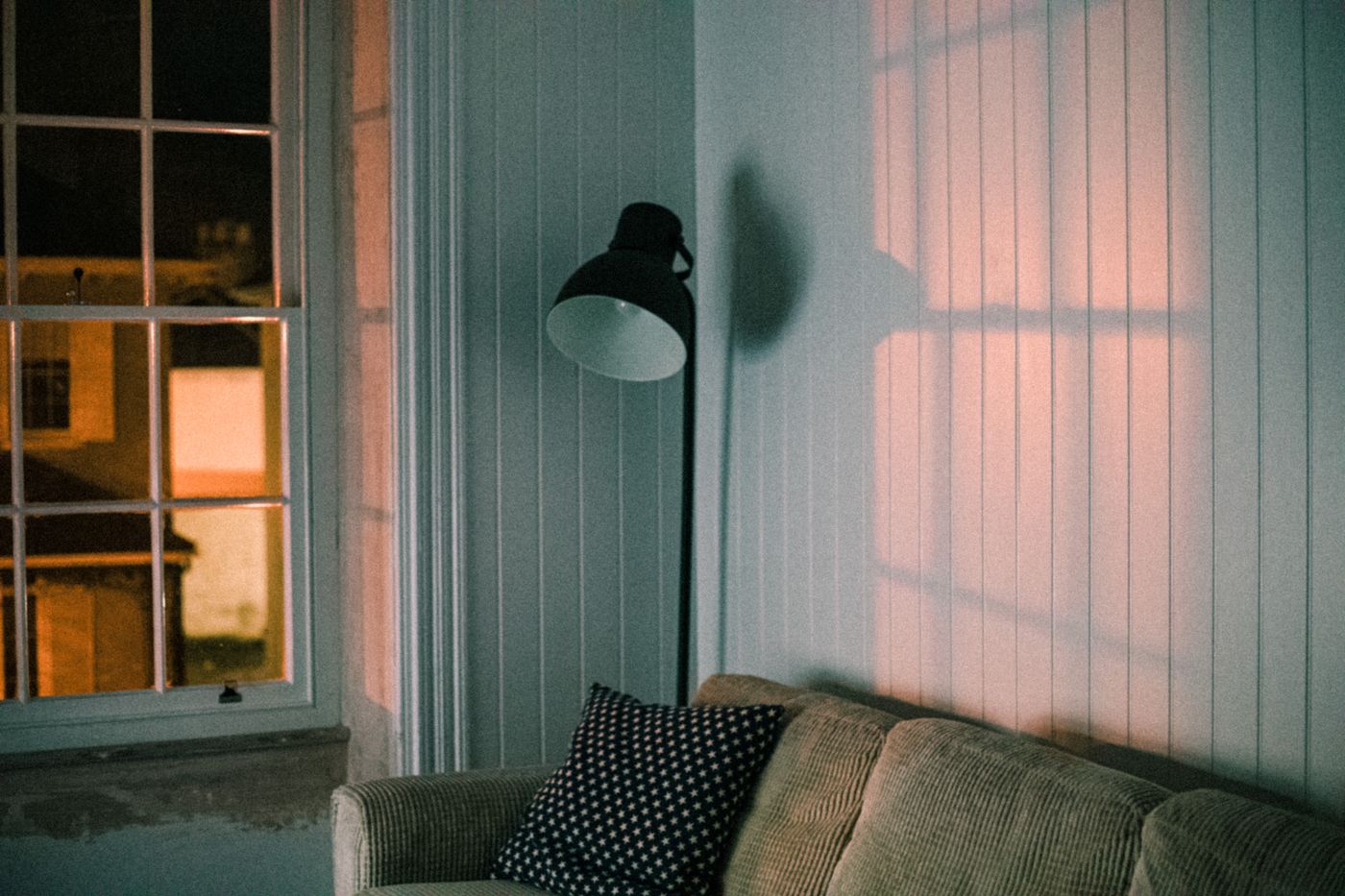
A lighting scene stores a chosen state for several lights. That sounds straightforward, but it becomes confusing when every mood gets a name and nobody remembers which lamps will change. Begin with an activity that genuinely happens in the room, such as reading, eating or watching television.
Describe that activity without technical language first. For reading, the page needs enough light, the person opposite should not be dazzled and the rest of the room should not be completely dark. Those requirements identify the lamps and their jobs. Brightness, colour appearance and transition speed come afterwards.
Build one scene in the room
Adjust the lights individually before saving anything. Aim the reading lamp, remove an awkward reflection and check the background illumination. Save the scene only when the combination works from the normal sitting position. An attractive colour picker on a phone says little about how paper, displays or faces look in the room.
Include only the lamps needed for the activity. Another person's desk light does not have to join a television scene merely because it occupies the same open-plan space. Check whether saving a scene records lights that are currently off. Some systems explicitly turn those lamps off when the scene runs, while devices omitted from a scene may remain unchanged.
Choose a name that explains the activity. Reading at the sofa is clearer than evening two. If a physical button supports several actions, make the most-used scene available with a simple press. Rare settings can remain in the app. Ordinary lighting should not require memorising a long sequence of double presses and holds.
What follows a manual adjustment?
One useful test is often overlooked: activate the scene and then adjust an individual light manually. Does that change remain until the scene is called again, or does an automation restore the previous setting shortly afterwards? Either may be intentional, but the behaviour should not be surprising.
Imagine a television scene that dims the room while a motion sensor restores bright general lighting whenever someone moves. Both functions may be operating correctly, yet they conflict. A documented pause for the motion rule could help, or the lights might need separate groups. Available options depend on the platform. Examine triggers and affected lights rather than disabling rules at random.
Schedules in different platforms can compete in a similar way. A manufacturer-app scene, a voice-assistant routine and a hub rule may all modify the same bulb. Keep responsibility understandable. For each automatic task, know which application owns the setting.
Investigate incomplete scenes
If only some lamps respond, operate a missing one individually. If that also fails, check power and connection. If individual control works, inspect scene membership and deliberately save a correction. Take care not to overwrite the entire saved room state accidentally with whatever happens to be active at that moment.
After replacing a bulb, compare its capabilities. A scene with adjustable white light cannot transfer unchanged to a bulb with one fixed colour temperature. Even compatible models may differ visibly in brightness and colour rendering. Refine the scene in the room rather than assuming identical percentage settings produce identical light.
Also try the essential general-light scene during a documented, controlled loss of internet access. Local scenes and physical controls may remain available while a spoken command depends on an online service. Make sure a clear manual way to obtain normal light remains.
After a few weeks, remove scenes nobody uses. Keep the small set whose purposes everyone understands. A manageable collection of carefully adjusted states is easier to maintain than a long list that was interesting only during the first setup session.