Checking a home network during an internet outage
Wi-Fi, the local network and the incoming internet service are separate parts of the route.
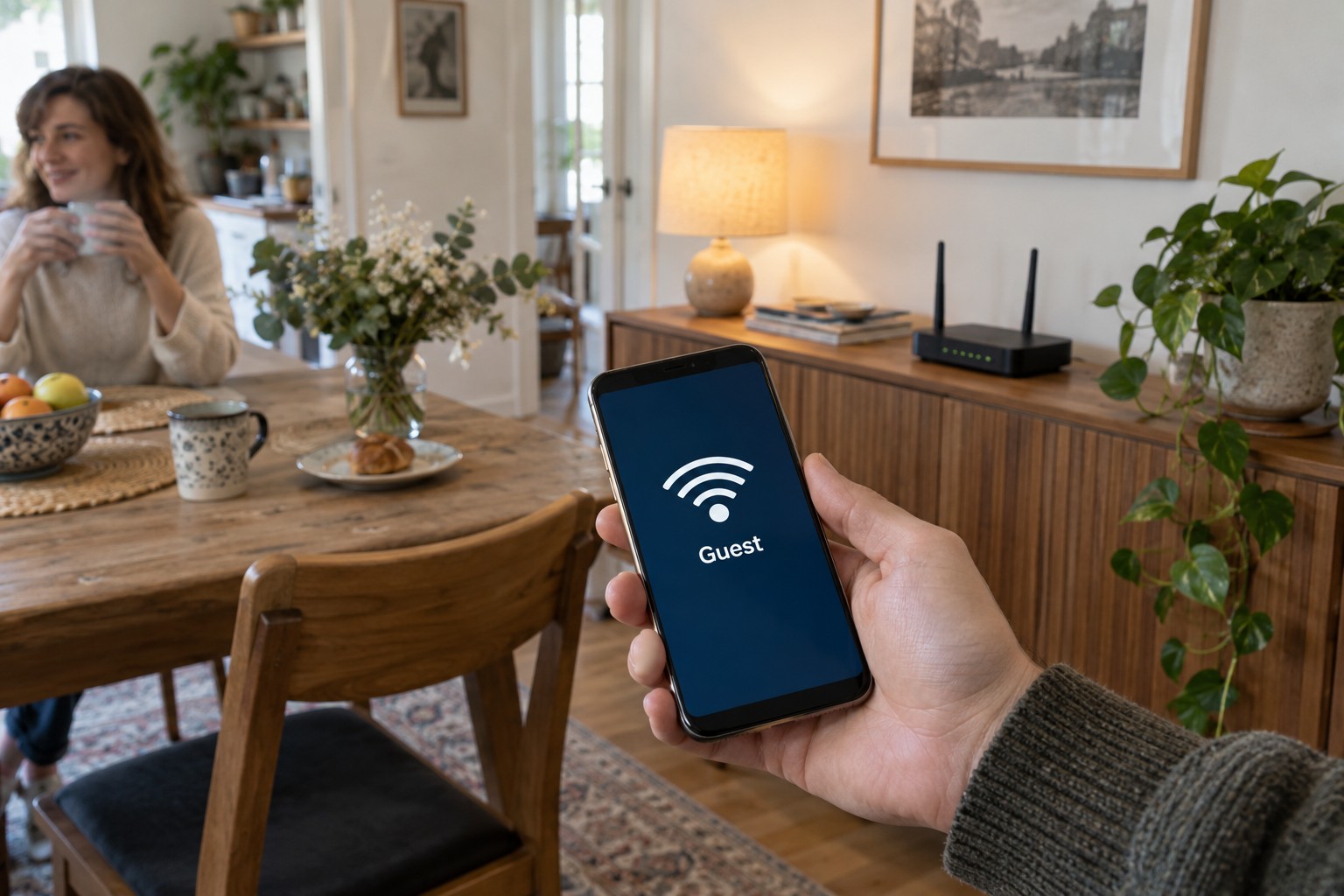
A phone shows a Wi-Fi connection but no page opens. It is tempting to conclude that Wi-Fi has failed. The radio link to the router may still be working while the outward connection is interrupted. A useful investigation separates those sections of the route.
Establish the scope
Try several unrelated services on the affected device. One unavailable website may have its own problem. Then compare a second client. On a phone, establish whether it still uses Wi-Fi or has automatically switched to mobile data; otherwise the comparison can look more successful than the home network really is.
If only one device fails, check its connection, flight mode, saved network and any active VPN software. Do not alter a managed work configuration speculatively. If all clients fail, focus on shared components such as the router, modem and provider connection.
Examine the local path
Where possible, open the router's local management interface using its documented address or method. Reaching it establishes a working local connection for that request. It does not show that the router can reach the provider. Inspect connection status and relevant events before changing settings.
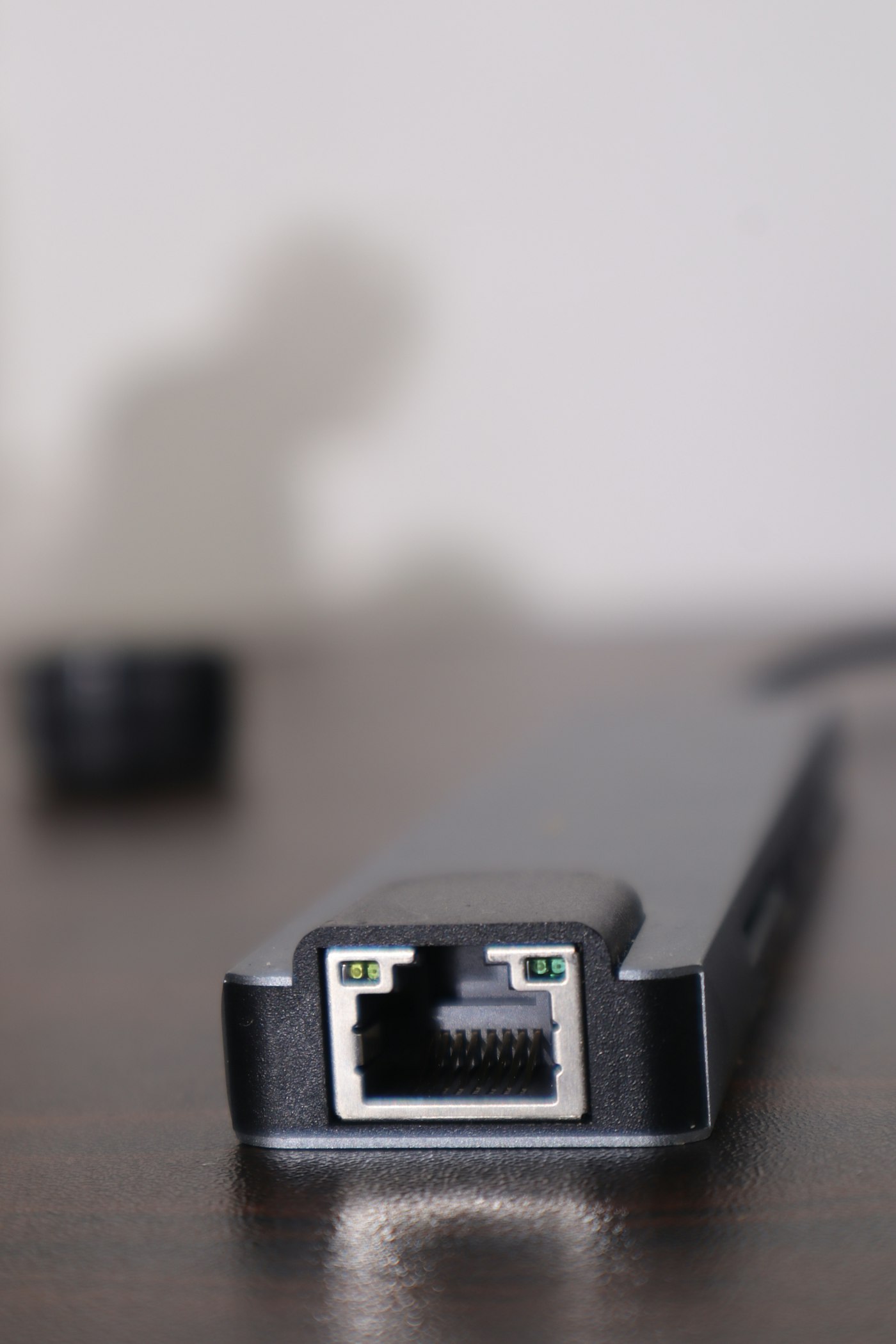
With a separate modem or fibre terminal, examine its status using the appropriate manual. Colours and flashing patterns are model-specific. Record the indicator label and how it changes over time. A loose Ethernet lead between two boxes is different from a missing incoming line connection.
A wired computer can provide another comparison. If it works at the router while several wireless devices fail, examine the wireless side. If it also fails, that does not automatically prove a provider fault, but it makes a purely wireless explanation less likely.
Get information from outside the connection
Use mobile data, if available, to check the provider's official service-status information. Confirm that the request is really travelling outside the failed home connection. A reported area outage can explain why local changes do not help. Equally, an empty status page does not rule out a problem that has not yet been reported.
Record the start time, affected functions and observed indicators. The connection type and exact router model help support staff. Login passwords, public photographs of device labels and unprotected configuration files are not needed for an ordinary description. Supply sensitive information only through the intended support channel when genuinely necessary.
A factory reset is not the default response
A documented restart can be part of diagnosis, preferably after preserving useful clues. Do not interrupt an update. A factory reset can erase configuration and add a setup problem to the original outage. Use it only when the specific troubleshooting process justifies it and recovery is prepared.
Notice which local functions still work. A printer or locally controlled light may remain usable without internet, while a cloud-dependent function may stop. This depends on the actual system. Switching everything off at once makes it harder to identify what is still operating.
When service returns, test the affected activities individually. Some equipment reconnects automatically; other clients may need targeted attention. Record the duration and remove temporary diagnostic changes. A known starting configuration is helpful if the interruption recurs.