Making video calls more reliable
A call needs timely delivery in both directions, not merely an impressive download result.
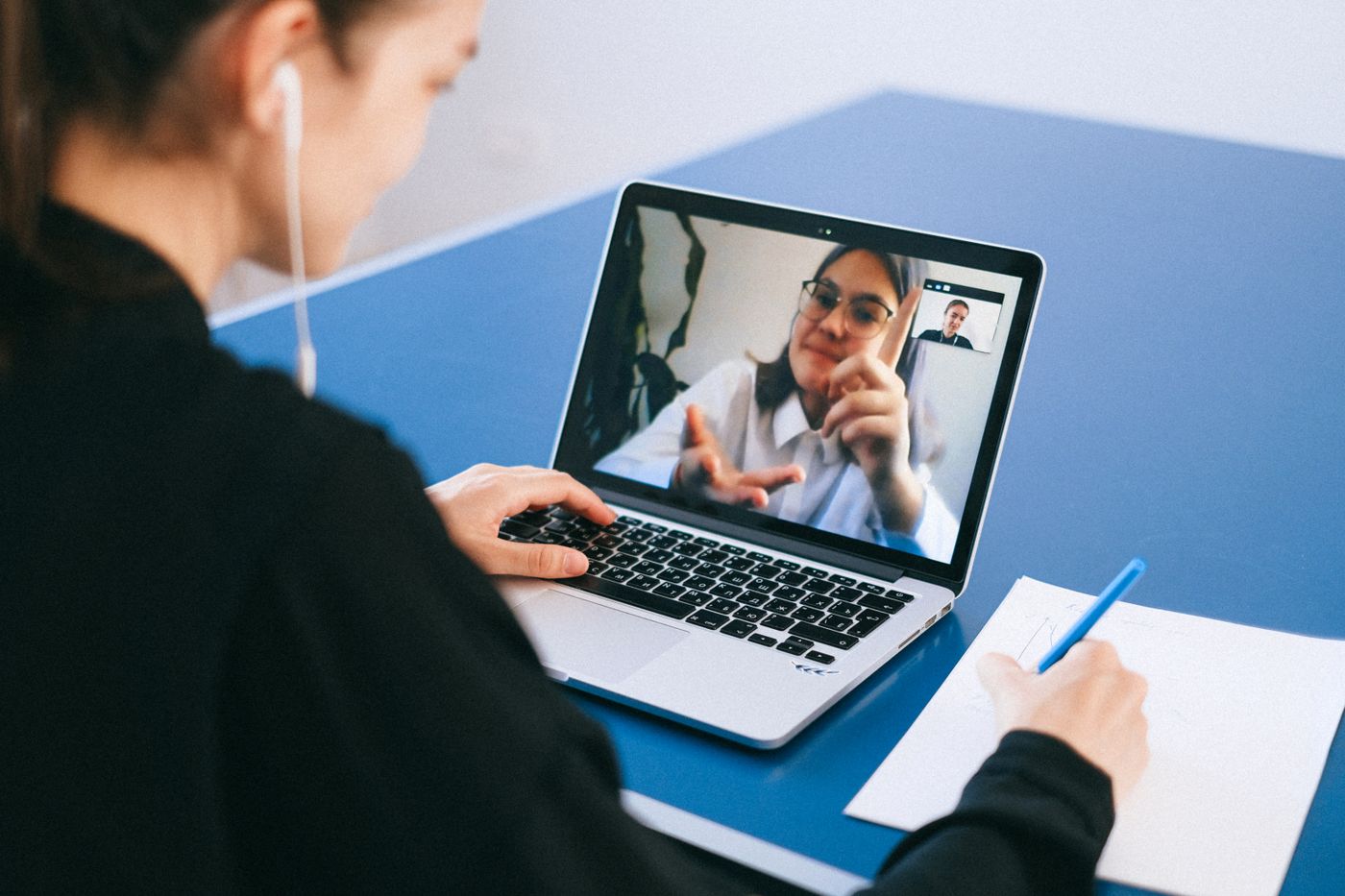
A call reacts differently to a weak connection from a file download. The download can slow down and finish later; speech needs to arrive on time. A connection with a high peak speed can therefore still produce awkward gaps and interruptions. Investigate the actual conversation rather than the largest number in a speed test.
Who is hearing the problem?
Ask whether the other person hears you poorly or whether you struggle to hear them. This helps distinguish the directions, although it does not identify the cause by itself. The fault can also be at another participant's end. Note whether audio, video or both are affected and whether the call software displays a warning.
Check obvious local explanations separately. The wrong microphone, an unreliable Bluetooth headset link or an overloaded computer can resemble a network problem. A short local recording helps investigate the microphone, but does not test the internet. Keep the purpose of each experiment clear.
Create a comparison connection
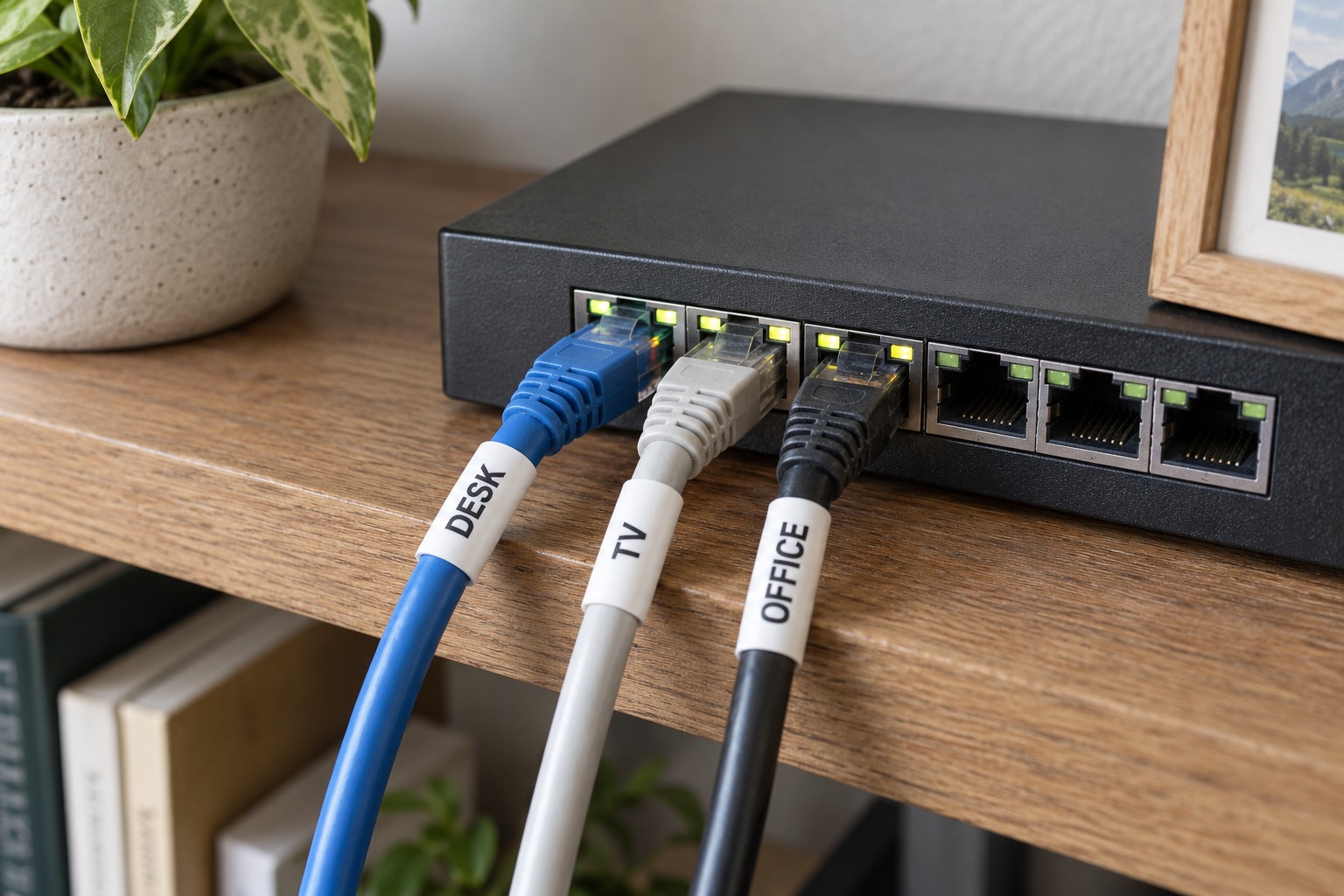
If possible, temporarily connect the computer through Ethernet. Make a comparable call without simultaneously changing the camera quality, headset and application. If it becomes stable, the wireless path deserves investigation. If nothing changes, Wi-Fi has not been established as the sole cause.
For another comparison, pause large uploads such as cloud backups. Other household activity may also share the connection. Agree a short test period rather than disconnecting other people's devices without warning. Note whether a particular activity coincides with the interruptions.
Some call applications expose statistics for packet loss, delay or bandwidth during a meeting. Read the provider's explanation because indicators and thresholds differ. A symbol beside another participant can describe their connection rather than yours. Do not include confidential meeting content in diagnostic screenshots.
Prepare the everyday arrangement
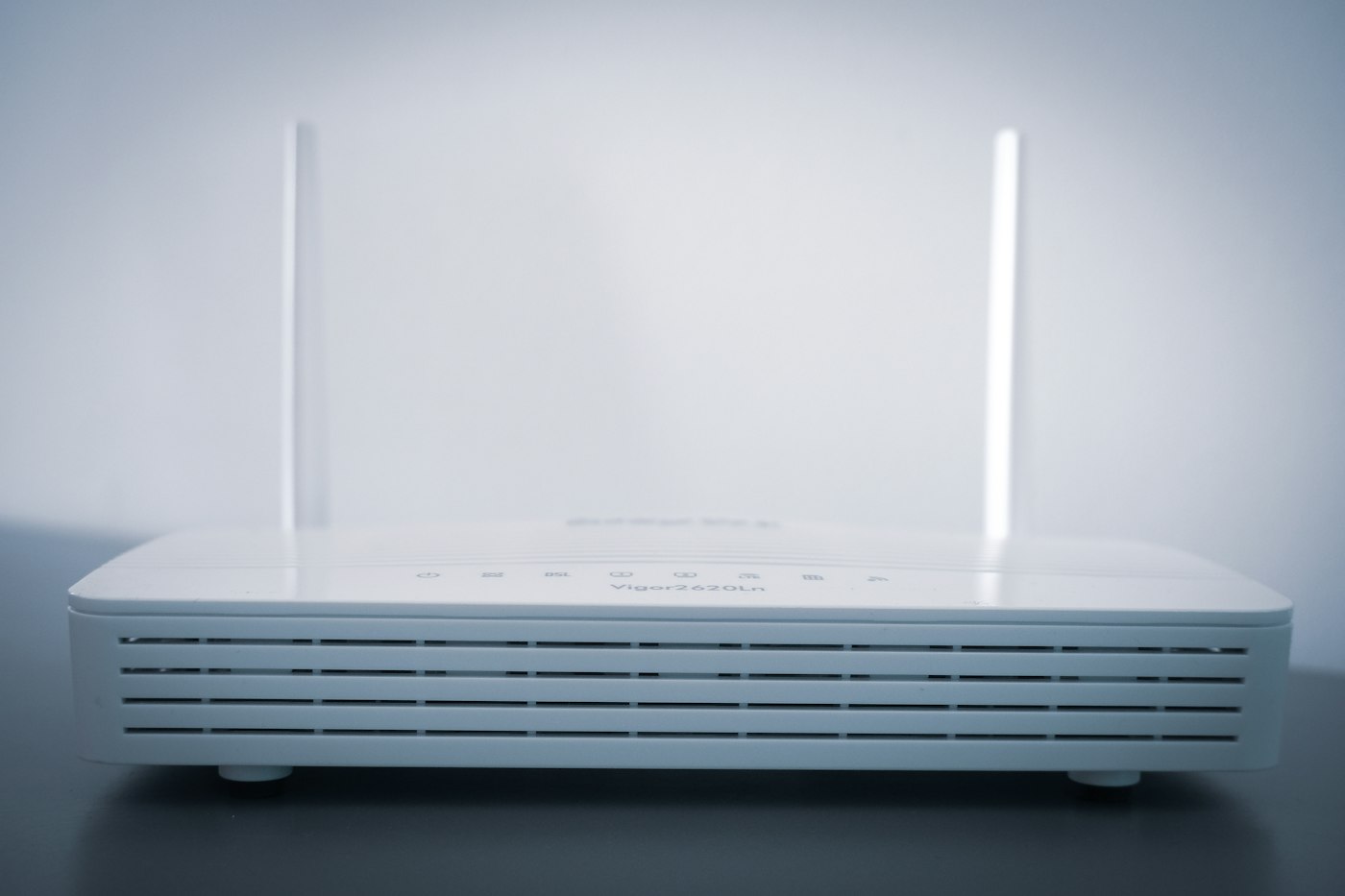
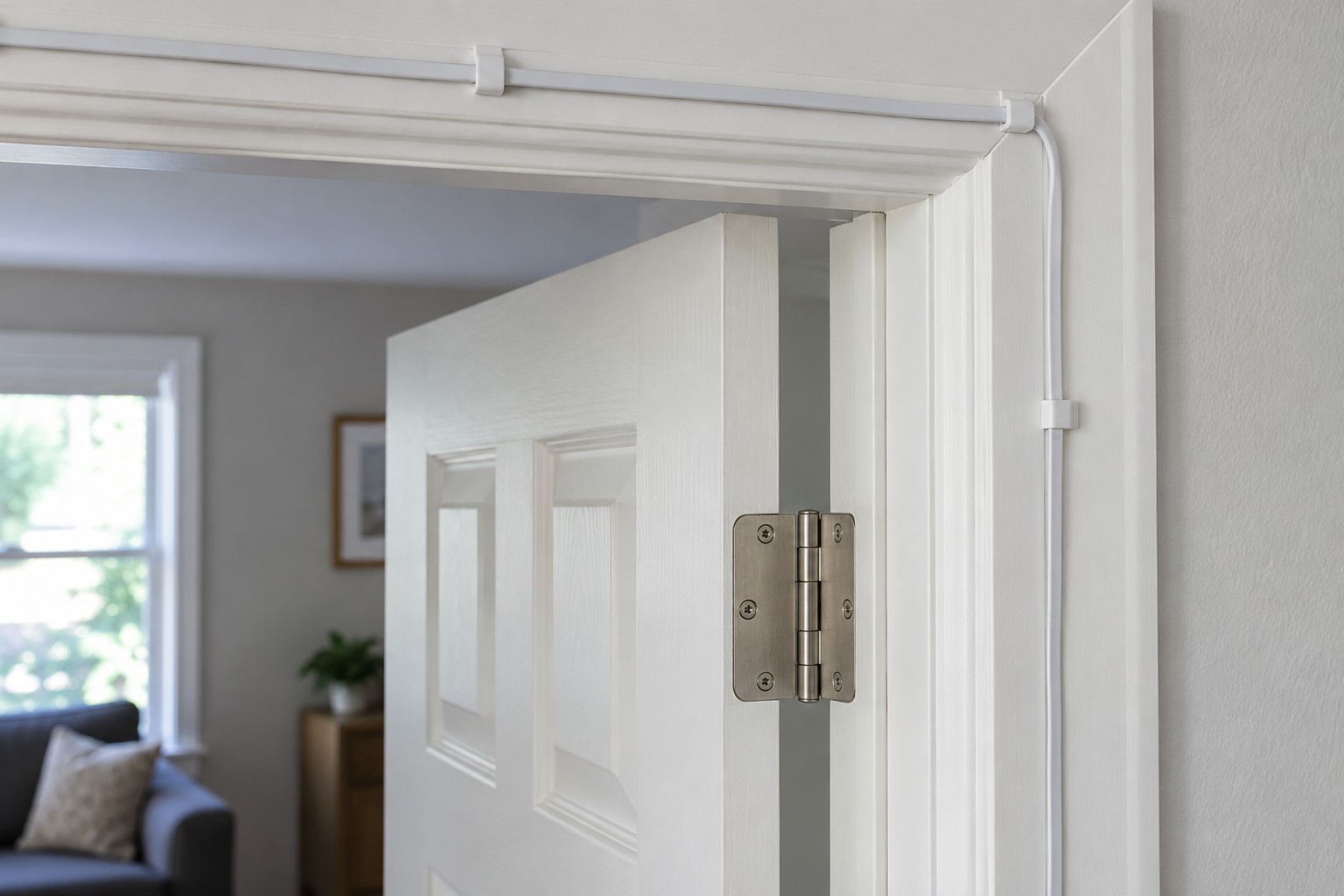
A fixed location with tested reception or a safely routed cable is easier to rely on than an improvised move between rooms. Test with the door closed and the normal seating position. A successful setup beside the router says little about later use behind two walls.
For an important meeting, agree a fallback beforehand, such as a supported telephone dial-in or a separate mobile connection. Consider possible charges and any workplace privacy requirements. Planning briefly in advance is usually easier than rebuilding the setup while everyone waits.
Reducing video quality or temporarily turning the camera off may help the current conversation if the application supports it. It does not explain the underlying fault. For recurring problems, retain the time, connection type and observed symptoms. That evidence helps distinguish the home network, provider, client device and calling service.