Troubleshooting a wireless mouse connection
Check power, connection type and receiver position separately before rebuilding the entire pairing arrangement.
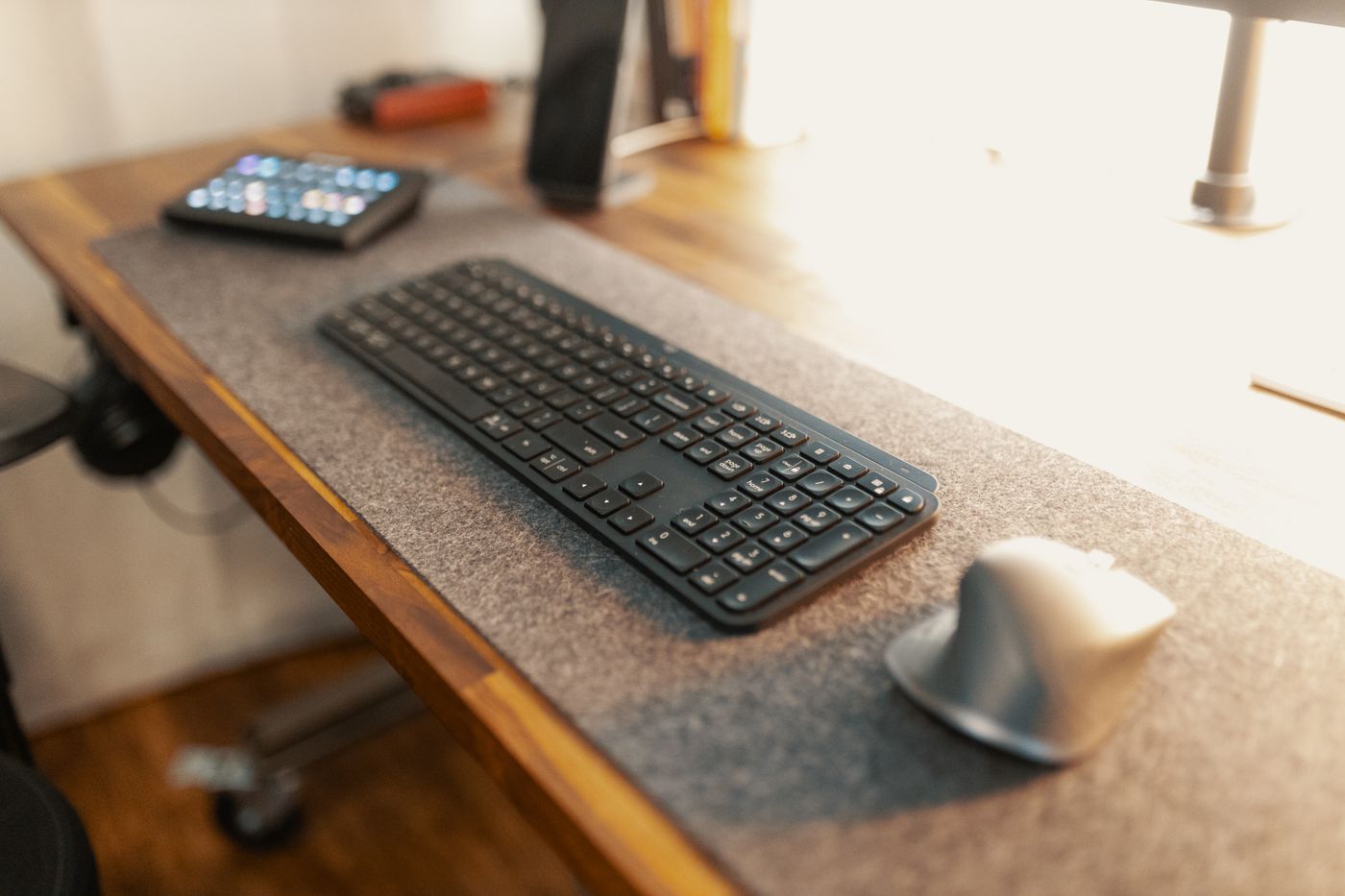
A stuttering pointer can have several causes. The battery may be low, the wrong device channel may be selected, or a USB receiver may sit awkwardly behind metal. Before removing drivers or deleting every pairing, describe the behaviour accurately.
Distinguish complete failure, intermittent disconnection and uneven movement. If buttons work while tracking is poor, the sensor and surface deserve attention. If movement and buttons fail together, power or connection is a more useful initial branch.
Identify the connection in use
A Bluetooth mouse uses the computer's Bluetooth function. Other models use a dedicated USB receiver. Some support both methods or several stored devices. Check the selected mode and channel before searching the computer for an apparently missing connection.
Any receiver from the same brand is not necessarily compatible. Manufacturers may offer several receiver families. If the original is missing, establish the explicitly supported replacement and pairing method. Repeatedly inserting an unsuitable receiver cannot create compatibility.
Charge the battery as instructed or insert suitable fresh batteries correctly. Check the power switch. For a mouse storing several devices, deliberately select the current computer's channel. These simple checks should precede a complete setup reset.
Move the receiver into a clearer position
A USB receiver behind a computer case may work less well than one positioned more openly near the desk. Try another appropriate socket or a short extension supported by the manufacturer. Change as little else as possible so the comparison remains meaningful.
Logitech describes possible interference affecting 2.4 GHz receivers close to certain USB 3 devices and connections. If dropouts begin when a fast external drive is attached, create distance between its cable and the receiver. This is a targeted investigation, not an explanation for every wireless problem.
Observe the result during a normal period of work. One successful click does not establish stability. If nothing changes, restore the previous arrangement before investigating the next possibility rather than accumulating unexplained modifications.
Separate surface and computer tests
Clean around the sensor carefully according to the instructions and try a suitable matte surface. Highly reflective or transparent desks can cause difficulties depending on sensor technology. If the problem occurs only on one surface, pairing may not be relevant at all.
Where possible, try the mouse with another supported computer. Conversely, test a known working mouse at the affected desk. These comparisons help distinguish device and environment without prematurely declaring either defective.
Only after basic checks should you move to documented steps such as pairing again or installing official updates. Keep another functioning input method available. For a managed work computer, involve the responsible support team before altering system settings or drivers.
Record the model, connection type and conditions of failure for any support request. Knowing that interruptions occur only beside a particular USB accessory is far more useful than reporting that the mouse sometimes does not work.