Covering a webcam between calls
A cover blocks a particular camera's view; microphones, permissions and ongoing calls remain separate controls.
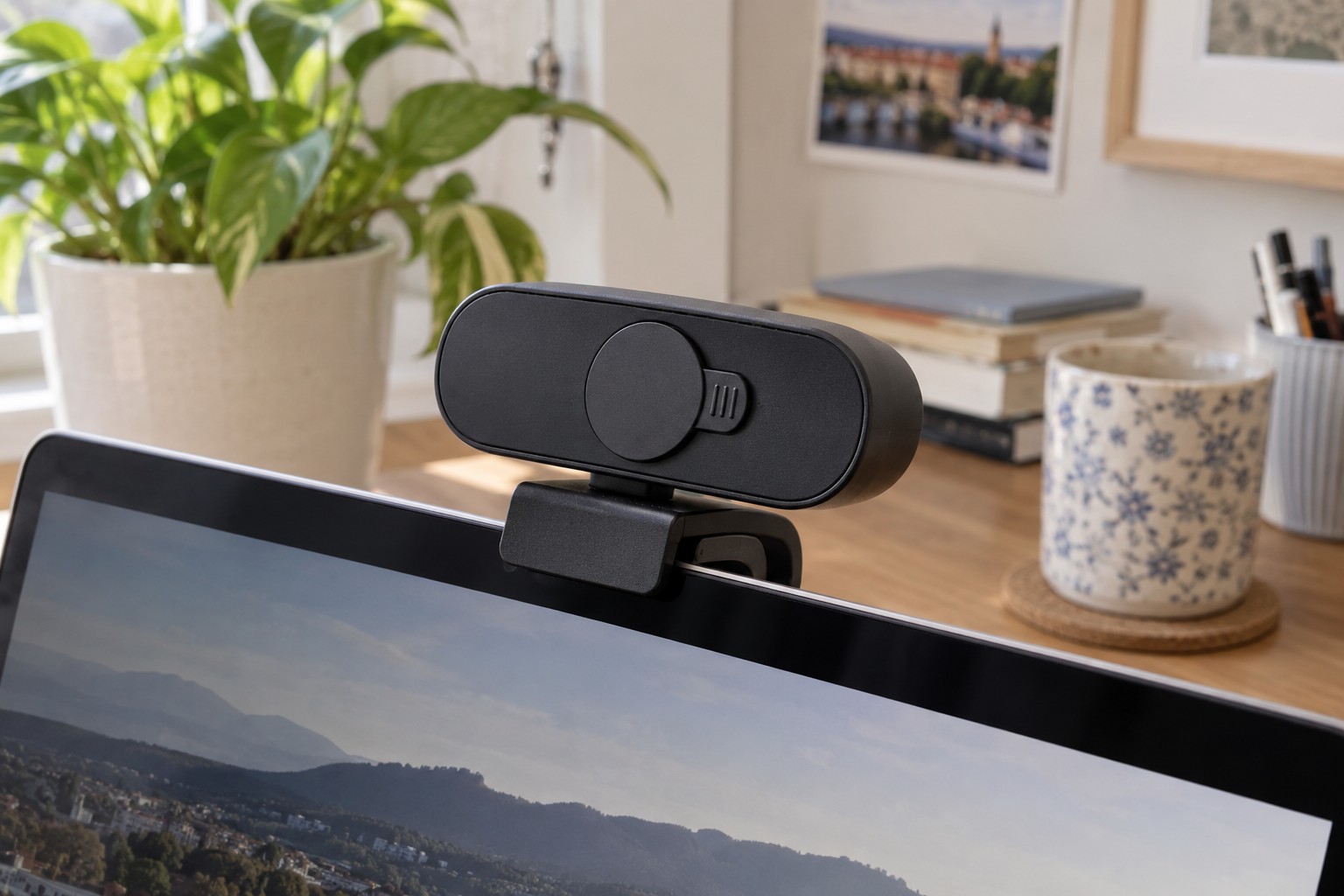
A closed camera cover blocks the view through that particular lens. It has a specific, limited purpose: it does not switch off an entire conversation or computer. Understanding that boundary makes a cover easier to use sensibly without confusing it with microphone controls or an application's access permissions.
Check the camera housing first
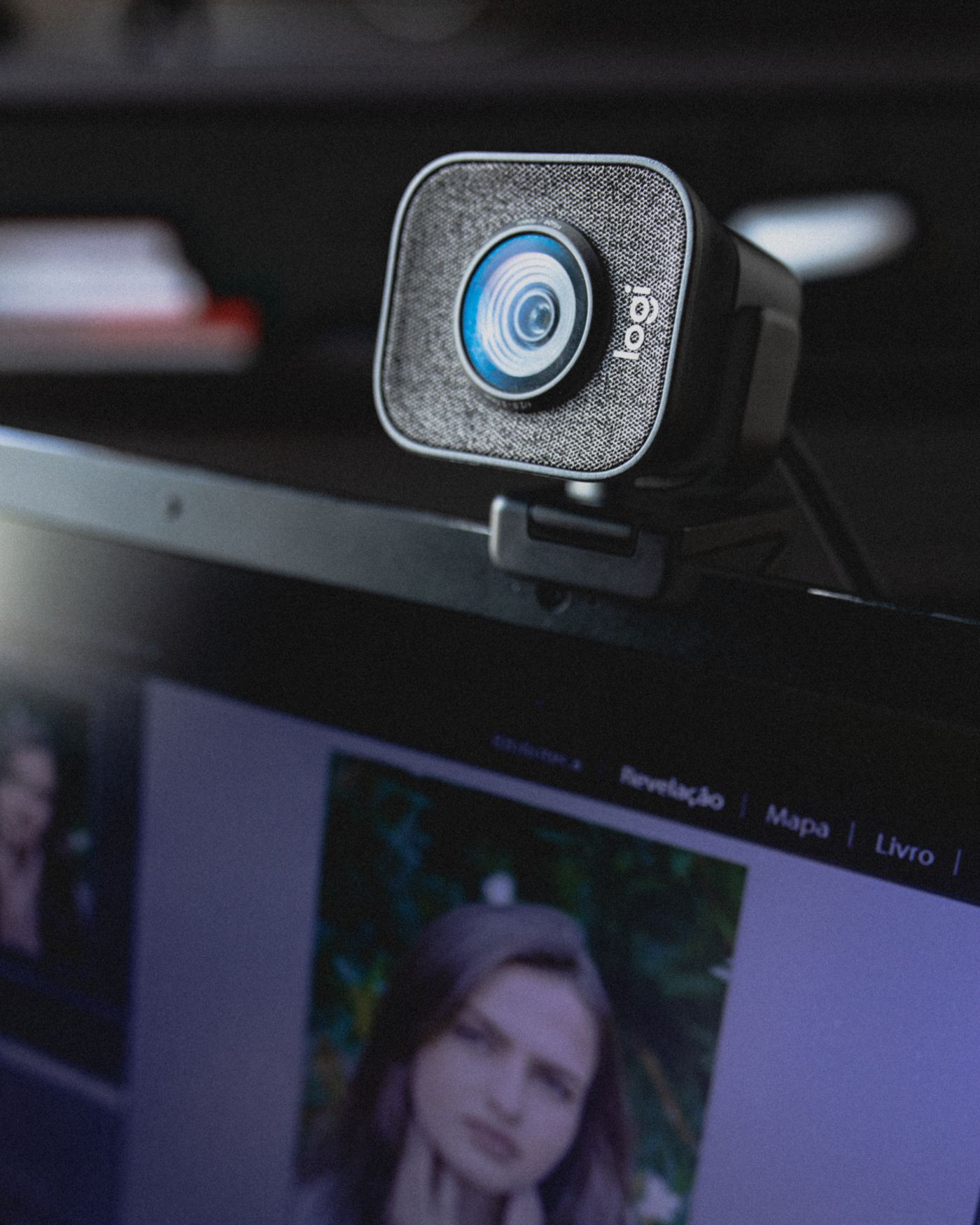
On a separate USB webcam, an integrated shutter or manufacturer-approved cover may be straightforward to use. It should move without repeatedly pushing the camera out of position. Check that neighbouring sensors, indicators and openings remain unobstructed and that the cover actually sits over the lens being used.
A laptop camera introduces another question: how much clearance remains between the screen and chassis when the lid closes? Apple specifically warns that closing certain MacBook laptops with a cover over the camera can damage the display. Obstructing nearby sensors may also affect other functions. This is a reason to read the instructions for your particular laptop, rather than assume that an accessory is universally suitable.
Do not simply attach a thick accessory to the screen border. If a cover must be removed before closing the laptop, make that part of the routine. A privacy accessory should not introduce a pressure point against the display.
Interpret the preview carefully
Open your calling application's camera settings and check which camera is selected. When a USB webcam is connected, the built-in camera may remain available as another source. Close the cover over the selected camera and inspect its preview. A black image from one source says nothing about a different camera that may be active.
Before the next appointment, open the cover and check the framing and background. Doing this beforehand avoids tugging at the monitor or hurriedly repositioning the webcam once the conversation has started.
Handle sound and screen sharing separately
Covering a lens neither mutes a microphone nor stops screen sharing. End the call in the application, stop any active share and check the audio controls independently. Unplugging an external webcam may also remove its microphone, but the software could switch to another audio device. Check the selected source rather than relying solely on the disconnected cable.
Review camera and microphone permissions in your operating system and browser, removing access that applications no longer need. Device-specific indicator lights can help, but their meaning should come from the relevant documentation. The cover, permission settings and call controls perform different jobs; none is a substitute for all the others.